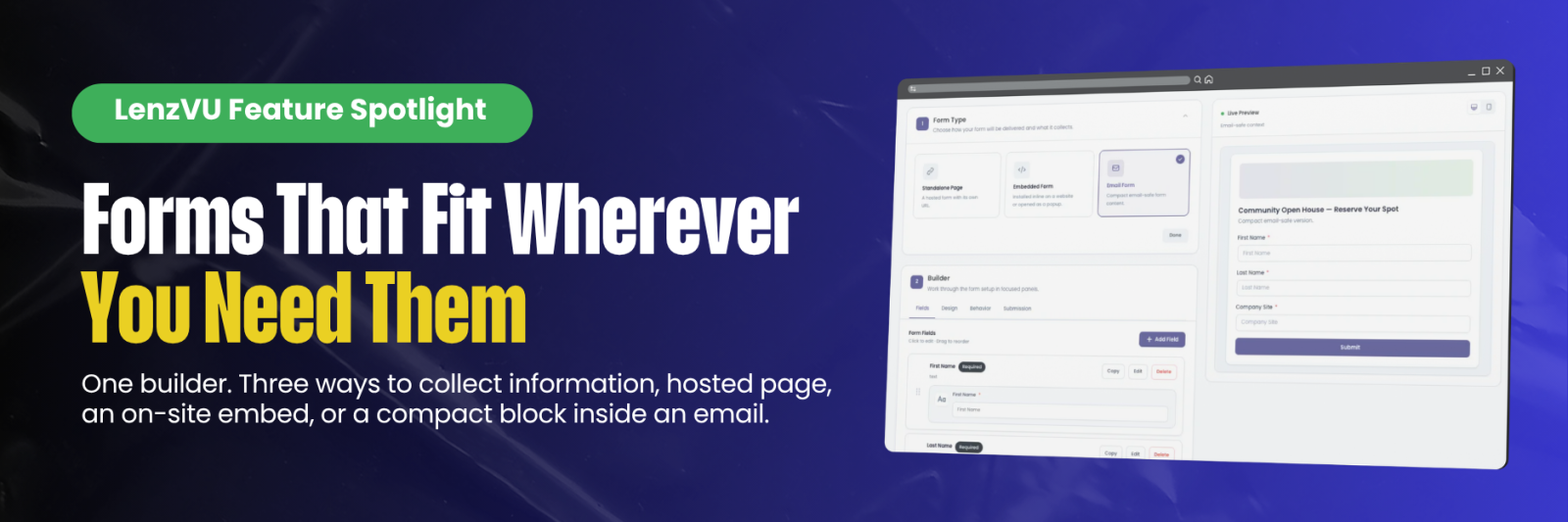
One builder, three ways to collect information — a hosted signup page, a form embedded on your site, or a compact block dropped right into an email. Here's how it all works.
Registrations, intake questionnaires, event RSVPs, liability waivers — every studio collects information constantly, and the format that works best changes depending on where you're meeting the person. LenzVU's Form Builder was built around that reality instead of forcing everything into one shape.
Every form starts from the same two-step screen: pick a Form Type, then build it out across four tabs — Fields, Design, Behavior, and Submission — with a Live Preview on the right that updates as you go, switchable between desktop and mobile. Nothing here is locked in early. You can change your form type, add fields, or restyle the page at any point without losing your work.

Form Type on the left, live preview on the right — updating in real time as fields are added.
Choose Your DeliveryThree Form Types, One Builder
The form type you pick on Step 1 determines what shows up everywhere else — so it's the first real decision to make.
Standalone Page
A hosted form with its own shareable URL. The only type that supports legally binding e-signatures — built for liability waivers.
Embedded Form
Lives inline on your website or opens as a popup. Ideal for on-site signups that keep visitors on your domain.
Email Form
A compact, email-safe block for newsletters and campaigns. Starts completely blank so you build exactly what fits.
Type 1Standalone Page: For Waivers and Real Landing Pages
A Standalone Page is a form LenzVU hosts on its own web page — send people to it by email, text, social post, or a QR code on a flyer. It's also the only form type where you can collect a legally binding e-signature, which is why it's the right home for liability waivers.
After choosing Standalone Page, you'll pick a Delivery Method:
- Standard Registration — a straightforward signup form for event registration, lead capture, or general intake.
- Liability Waiver — a full signing flow. LenzVU automatically adds terms and conditions, a signature warning, disclosure text, and a signature pad visitors can sign with a mouse, finger, or stylus. An Enable Minors Fields toggle adds parent/guardian information for waivers involving kids.
Because it's a real hosted page, Standalone Forms get a full design editor: colors for the page background, form card, and each input field; label fonts and sizes; a custom submit button and text; and field corner rounding. You can also toggle your logo and the "Powered by LenzVU" footer on or off.

The Design tab on a Standalone Page — full control over colors, typography, and branding.
Since the page is publicly hosted and shareable, it also comes with SEO & Social Sharing fields — an SEO title, meta description, and Open Graph image — so the link looks right whether it's found in search or shared on social.

SEO title, description, and Open Graph image — set once and the link looks polished everywhere it's shared.
Type 2Embedded Form: Built for Your Own Site
An Embedded Form installs directly on your website with a short code snippet, keeping visitors on your domain instead of redirecting them. After choosing this type, pick a Display Style:
- Inline — sits directly inside a section of your page, like any other content block.
- Popup — overlays your page, either as a centered window or a small floating button visitors click to open.
Embedded forms are always registration-style — there's no waiver or signature option here (that's what Standalone Page is for). Instead of one big theme editor, styling is broken into small, collapsible sections — header, layout, labels, inputs, and buttons — so you can fine-tune exactly the piece you care about, with a Reset button if you want to start over.

Embedded Form, Inline style — styling broken into focused, collapsible sections.
If You Choose Popup
Popup forms get an extra Popup Settings panel in the Behavior tab, controlling exactly how and when the form appears:
- Show it as a pop-up window or a floating button
- Time it to a delay, a visit count, or a visitor coming from a specific Facebook or Instagram ad
- Show it once per visitor or every time they land on the page
- Optionally let visitors reopen it after closing
Popup timing and frequency changes go live the moment you save — no need to touch your embed code again.

A popup form previewed as visitors will see it — centered overlay on top of page content.
Type 3Email Form: A Clean Slate for Campaigns
An Email Form is a stripped-down version built to be pasted directly into a newsletter signup block, a quick RSVP, or a small survey inside a campaign. There's no delivery method or display style to choose — just select Email Form and start building.
The biggest difference: it starts completely blank. Every other form type comes pre-loaded with a logo and a few default fields; an email form gives you a clean slate, and you add exactly what you need with the same + Add Field menu used everywhere else. Because email clients render HTML and CSS inconsistently, there's no Design tab — LenzVU applies a fixed, email-safe layout automatically so it renders reliably everywhere it lands.

Email Form — no fields until you add them, and no design tab to worry about.
Every Form, Every TypeThe Features That Work the Same Everywhere
A handful of tools carry across all three form types, so you only have to learn them once.
Fields That Don't Need Rebuilding
Every field shows up as a card with a drag handle, its label and type, and Copy, Edit, and Delete controls. Required fields have to be filled in before submitting; System fields, like Email, are built into the platform and can't be removed. Clicking + Add Field gives you three ways in: pull from a ready-made list of common client details (Add Profile Fields), build something new from scratch — anything from Short Text and Email to Signature Pad, Rating, Picture Upload, and Date Picker (Create New Field) — or reuse a field already built on a different form (Add Other Fields). That last one keeps your reporting clean: reused fields map to the same data point no matter which form they came from.
Confirmation Emails and Privacy Notices
Standalone and Embedded forms can automatically email the person after they submit — flip on Send email under the Behavior tab, then set the subject, sender, and write the email itself in the built-in VU Email Editor. Liability Waivers send this automatically by default, since clients should always get a copy of what they signed (that's what the {{document_link}} merge tag is for). Every form type also includes a Show Privacy Policy toggle and a Mindbody Integration section for businesses running their scheduling through Mindbody.
The VU Email Editor itself is block-based, so building the email feels a lot like building the form: each piece — a text block, an image, a button, a footer — is its own draggable card with duplicate and delete controls, and blocks you've used before get a "saved" badge so you can reuse them without rebuilding. Two settings shape the whole email:
- Email layout — Marketing (centered column, ideal for newsletters) or Plain reply (full-width, feels more like a personal note)
- Column width — Small (480px), Medium (600px), Large (700px), or a custom width
Background color is controlled separately for the content area and the outer gutters, with a quick-pick palette pulled straight from your brand colors — Primary, Secondary, Tertiary, Text, Background, Button, Button Text, and Footer — so every confirmation email matches your form without hunting for hex codes. For anything the block editor doesn't cover, a Custom CSS panel lets you drop in your own styles, which get compiled directly into the sent email.

The Behavior tab — confirmation email, privacy notice, and Mindbody integration in one place.
What Visitors See After They Submit
Once someone submits, you decide — and style — what they see next: background, text, and accent colors, whether your logo shows, and whether a large success checkmark appears. Standalone and Email forms can show a fully custom Thank You page or redirect to another URL, like a booking page. Embedded forms use no action or a redirect, since the form already lives inside your own site.

The Submission tab — write the thank-you message and style the confirmation screen visitors see.
After the SendEvery Submission, Tracked Automatically
No matter which form type it came from, every response lands in the same place: Reports → Form Submissions. At the top, you get a quick pulse check — total submissions all-time, plus rolling counts for the last 12 months, 30 days, and 7 days — with a search bar to look up a specific person by name or email.
Each row gives you real context: which form and version it came from, the referring page and IP address, completion time, and device, browser, and language. The three-dot menu lets you view the full submission or resend a validation email, and Download exports the whole list at once. Submissions from a liability waiver get two extra icons — one to download the signed PDF, one for just the signature — so you can grab a single signed waiver without exporting the entire report.
Quick Answers
Can I add a signature to an embedded or email form?
No — e-signatures and waiver content are only available on a Standalone Page with the Liability Waiver delivery method.
Can I switch a form's type after I've already started building it?
Yes. The Form Type panel stays open and editable the whole time, though switching types can change which fields and design options are available.
Do I need to update my embed code every time I tweak a popup setting?
No — popup timing, frequency, and appearance changes go live automatically as soon as you save. Your embed code doesn't change.
Why is my new email form completely empty?
That's by design — email forms start blank so you can build exactly the compact layout you need with Add Field.
Can I see how many people clicked my form link?
Yes — Link Tracking monitors clicks and engagement on any published Standalone Form link.
See the Form Builder in Action
Book a live walkthrough and we'll show you exactly how a waiver, an embedded popup, and an email signup form come together for your studio.
Book a Free Demo