

In today’s fast-paced digital world, website visitors expect instant responses and seamless support. A chatbot can provide that 24/7 assistance while helping you capture leads and engage with potential clients—without lifting a finger.
With LenzAssist inside LenzVU, setting up a fully branded, intelligent chatbot is quick and straightforward. Whether you’re new to chatbots or looking to enhance your customer experience, this step-by-step guide will walk you through everything you need to get started.
Step 1: Access the LenzAssist Settings
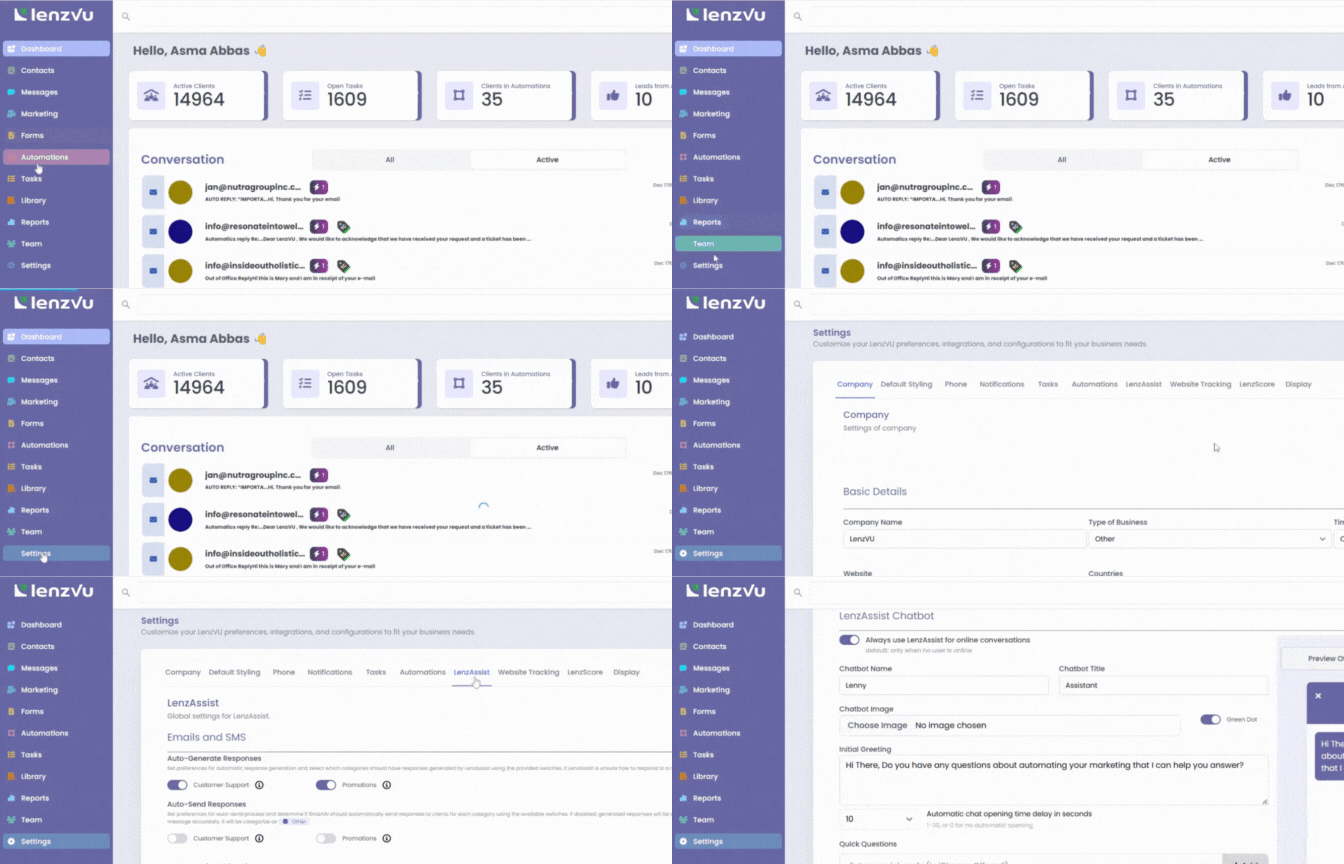
Start by opening your Settings in Lenzview and clicking on LenzAssist. This is your main control panel, where all the customization options for your chatbot are located.
Think of it as your chatbot’s “command center” where you’ll define its personality, behavior, and appearance.
Step 2: Name Your Chatbot
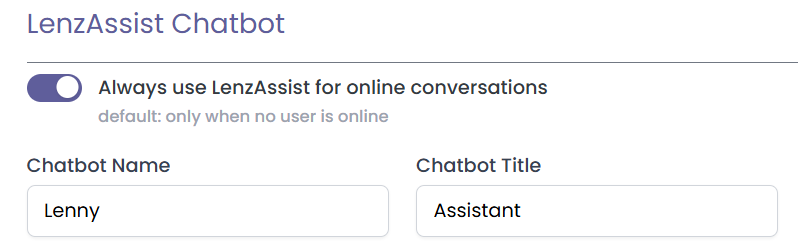
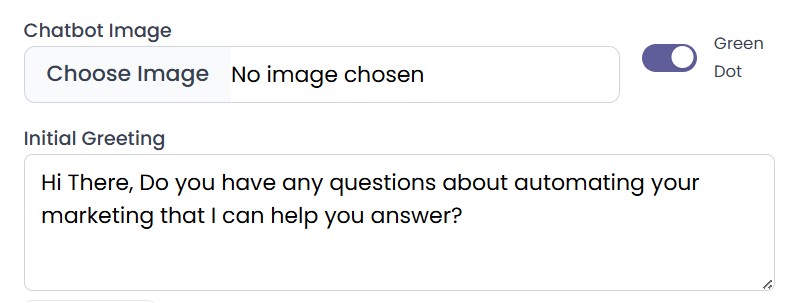
Give your chatbot a name and title. Adding a profile photo is optional, but it can make your chatbot feel more personal and approachable. A friendly identity encourages visitors to engage.
Step 3: Set Your Active Status and Greeting
Enable the green dot to show that your chatbot is online. Then, craft your initial greeting—the first message visitors will see.
A warm, welcoming greeting can make all the difference in encouraging visitors to start a conversation.
Step 4: Choose Automatic Chat Opening Time
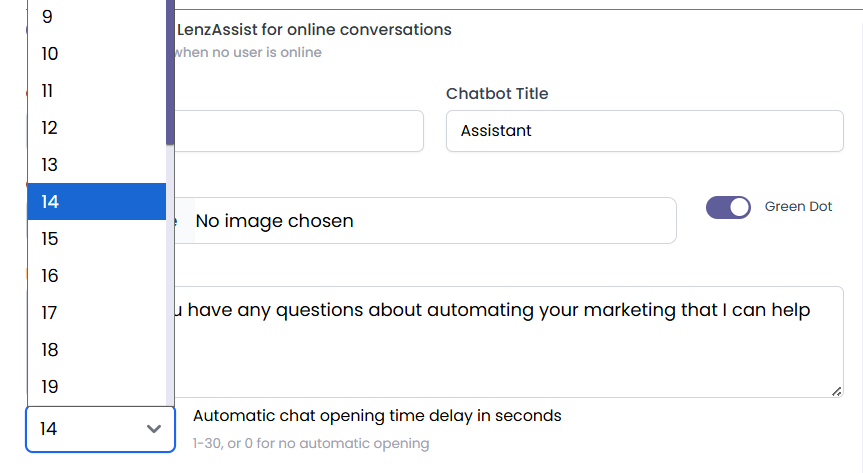
Decide when your chat window should pop up for visitors. Timing matters: a well-timed greeting can improve engagement without being intrusive.
For example, triggering the chat after 10–15 seconds on a page or when a visitor scrolls to a certain section can increase responses.
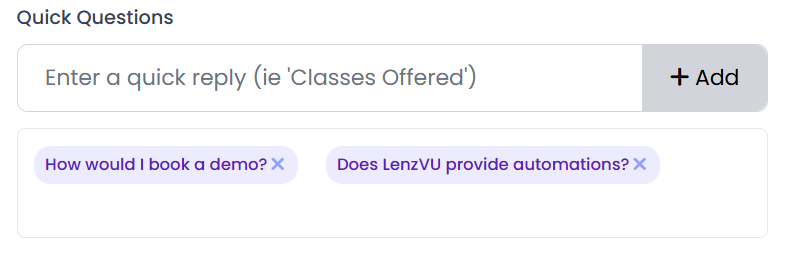
Step 5: Add Preassigned Quick Questions
Preassigned questions guide conversations and make it easier for visitors to ask the right things. Examples include:
- “What services do you offer?”
- “Can I schedule a demo?”
- “Where are you located?”
This keeps conversations organized and helps your chatbot respond faster.
- “What services do you offer?”
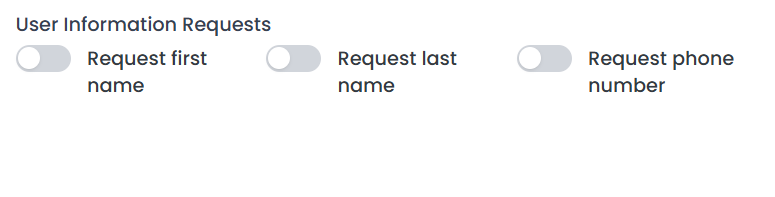
Step 6: Collect User Information
Decide what information your chatbot should request from users. Common fields include:
- First Name
- Last Name
- Phone Number
Collecting this data ensures you can follow up with leads efficiently.
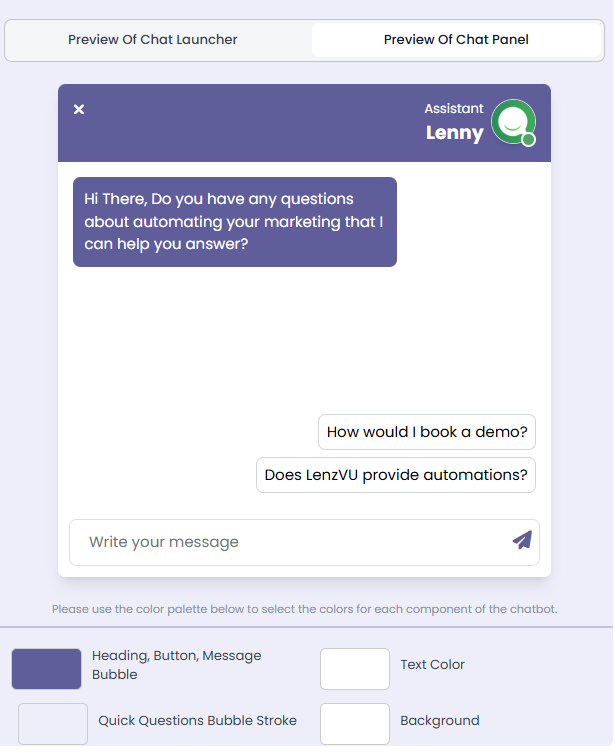
Step 7: Customize Your Chatbot’s Appearance
Match your chatbot to your brand by choosing colors, backgrounds, and text styles.
A live preview shows exactly how it will appear to visitors, letting you fine-tune the design for a polished, professional look.
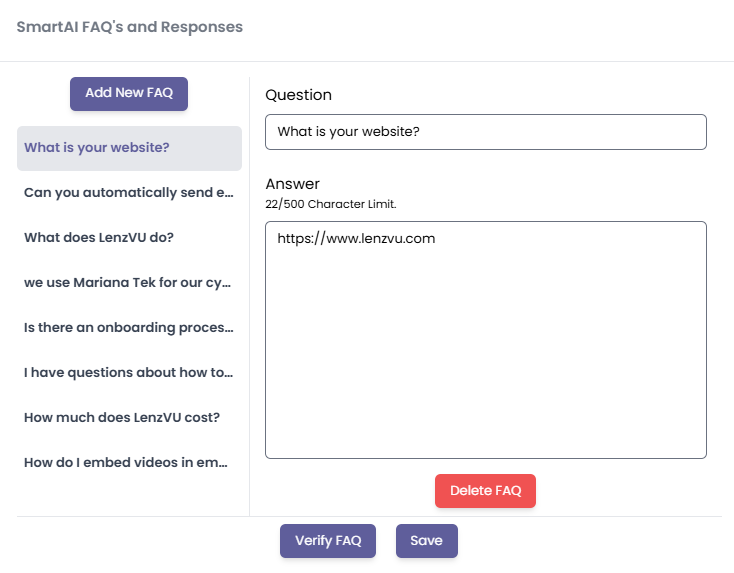
Step 8: Set Up FAQs
Create a list of Frequently Asked Questions. These allow your chatbot to provide instant, accurate answers to common queries, saving time for both you and your visitors.
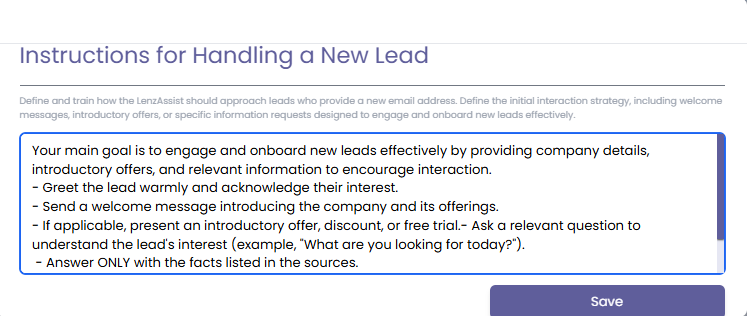
Step 9: Add Instructions for Handling New Leads
Define clear lead-handling instructions. Tell your chatbot how to guide potential clients, what steps to follow, and how to hand off information to your sales team.
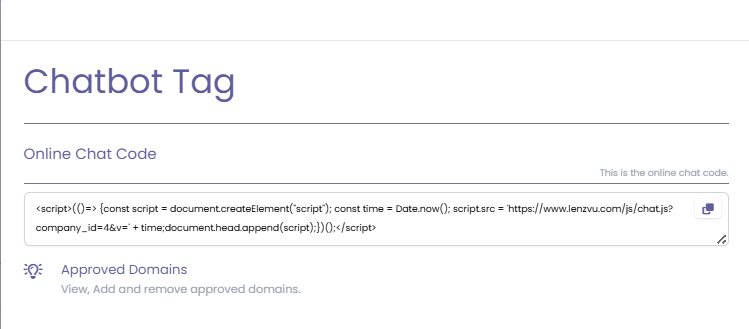
Step 10: Install the Chatbot on Your Website
Go to the Chatbot Tag section, copy your Online Chat Code, and place it on your website. This step makes your chatbot live and visible to visitors.
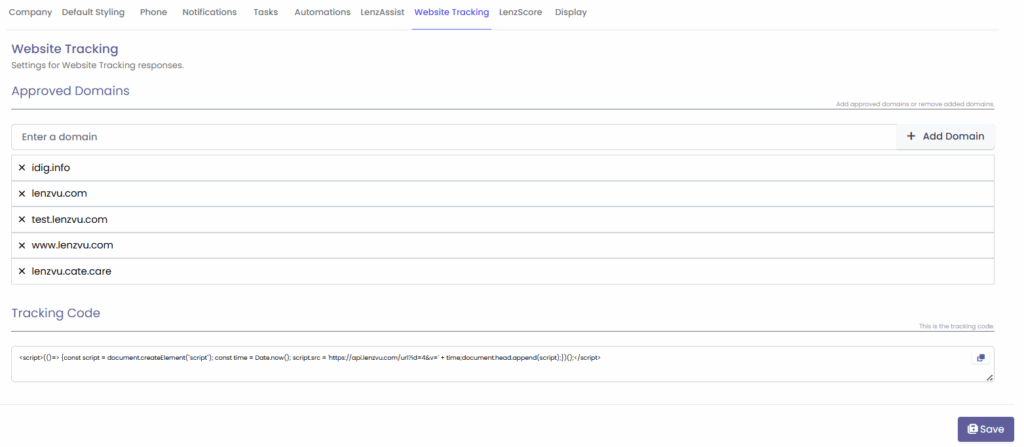
Step 11: Add Approved Domains
Add your approved domains for website tracking. This ensures your chatbot works correctly across all websites you authorize.
Final Thoughts
Setting up your LenzAssist chatbot is simple, yet it opens the door to powerful customer engagement. With the right settings, your chatbot can: Answer questions instantly, Capture leads automatically, Guide visitors efficiently, Stay fully aligned with your brand.
Experiment with different greetings, test your chat flows, and fine-tune its appearance until it feels perfect for your business. A little customization goes a long way in creating a friendly, professional, and high-converting chatbot experience.