
How to Create Your First Automation in LenzVU

Automations are one of the most powerful tools inside LenzVU. They help you save time, automate follow-ups, and deliver a consistent experience to your clients, without manual effort.

In this guide, we’ll walk you through how to create your first automation in LenzVU, step by step, exactly as shown in our video tutorial. By the end, you’ll know what automations are, how they work, and how to activate one with confidence.

1. Create a New Automation

To get started:

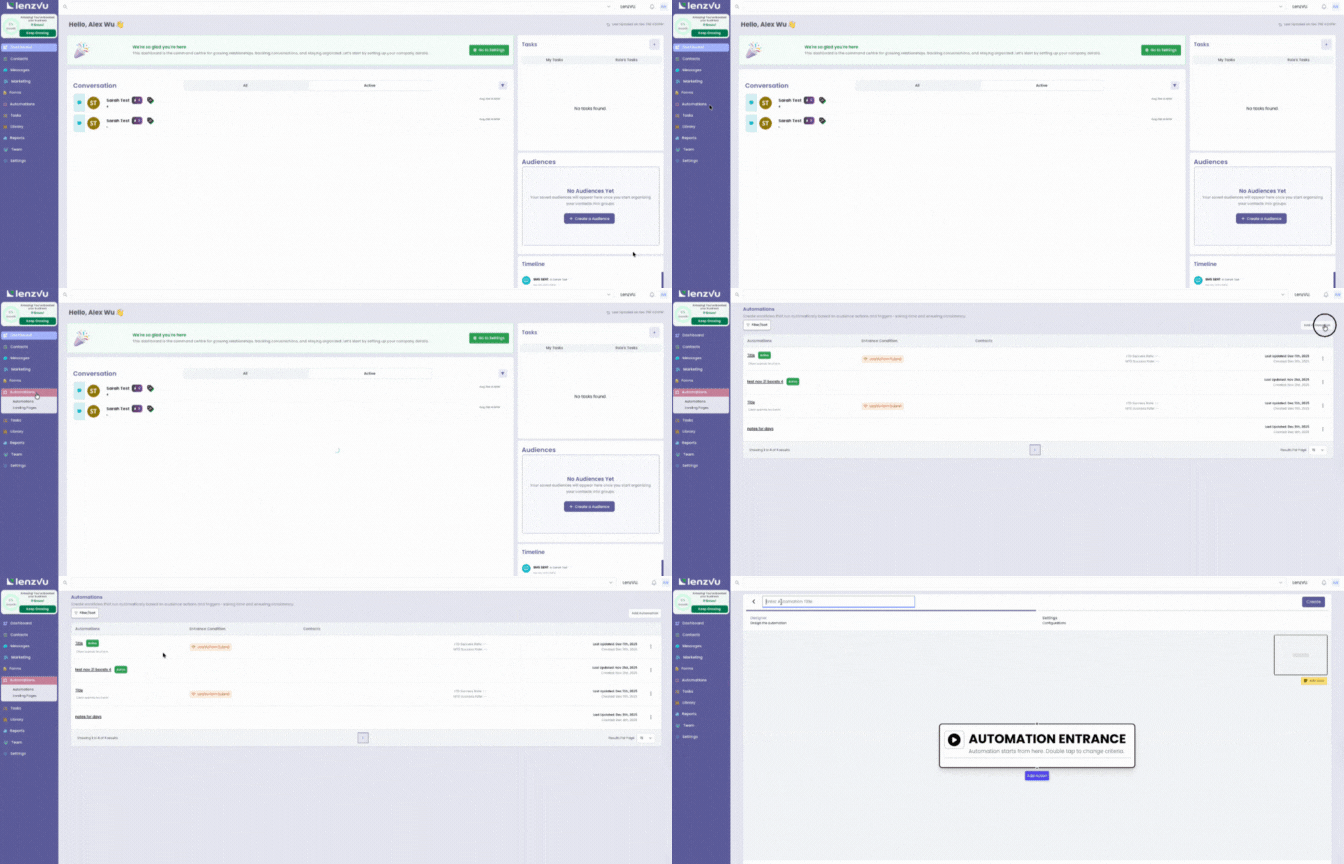
  1. Click the Automation tab in the left-hand menu.

  2. Select Automations.

  3. Click Add Automation.

  4. Give your automation a title.

  5. Click Create.

You’ll now see a blank automation canvas where you can begin building your workflow.

2. Set Your Entrance Criteria

Entrance criteria define how clients enter your automation.

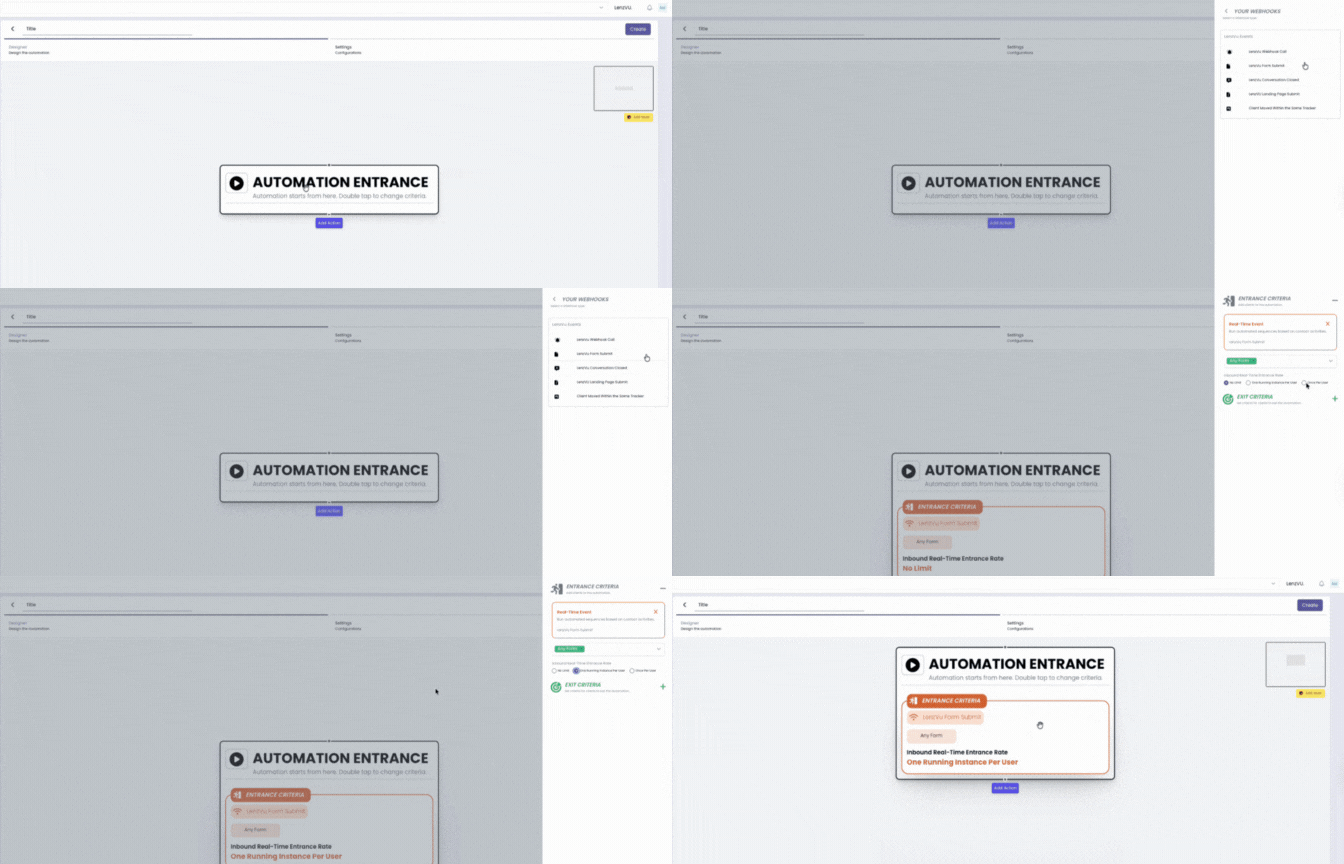
  1. Double-click Automation Entrance.

  2. You’ll see two options:

    • Audience

    • Real-Time Event

For this example, we’ll use a real-time trigger.

  1. Select Real-Time Event.

  2. Choose LenzVU Form Submit.

Next, choose an entrance rate:

  • No Limit – clients can enter every time the event occurs.

  • One Running Instance per User – clients can only be in this automation once at a time.

  • Once per User – clients can only ever enter once.

For this walkthrough, select One Running Instance per User so each client moves through the automation only once at a time.

Click outside the box to save.

3. Set Your Exit Criteria

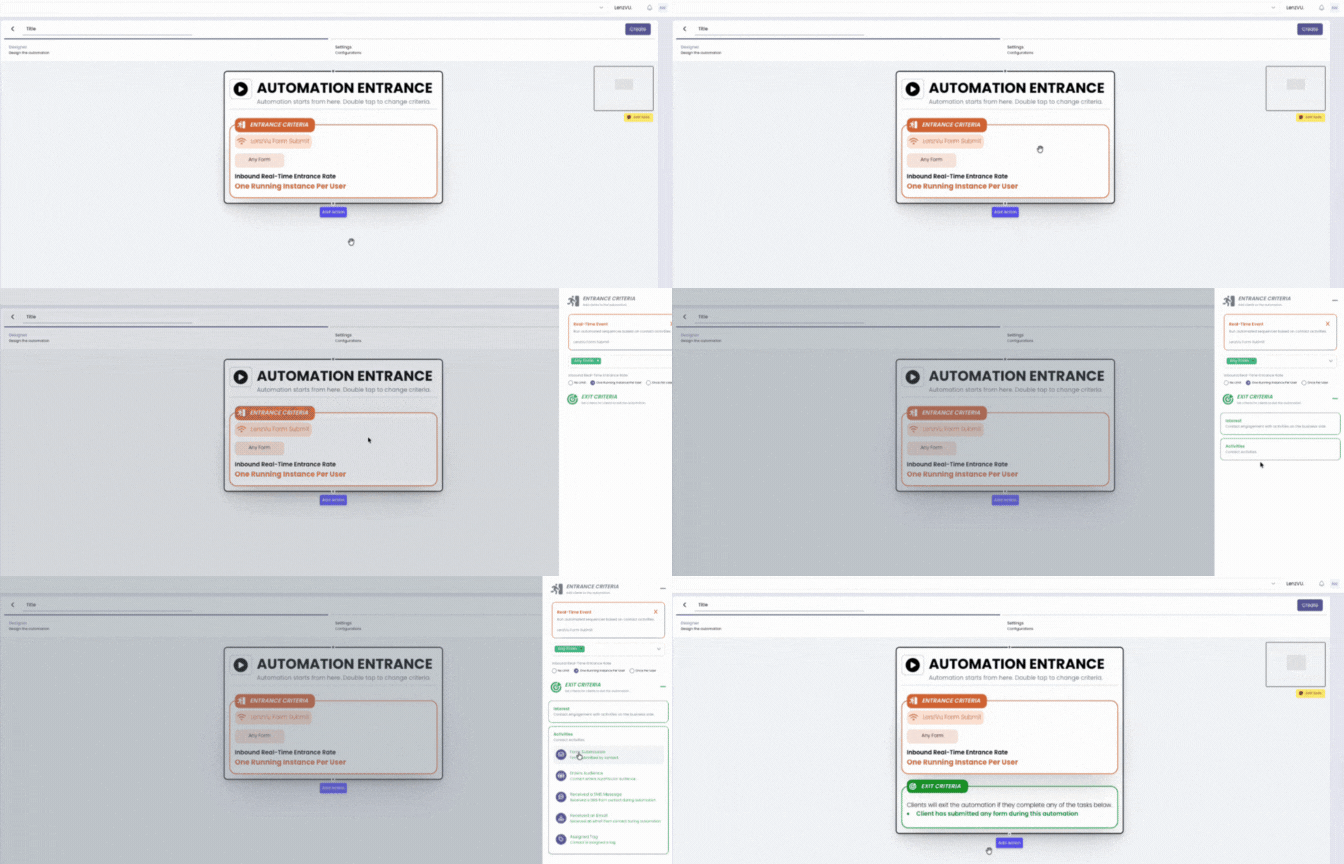
Exit criteria determine when someone should leave the automation.

  1. Double-click Automation Entrance.


  2. Select Activities.


  3. Choose Form Submission.


Since the exit condition is evaluated before any step is executed, clients automatically exit the automation after completing the required activity.

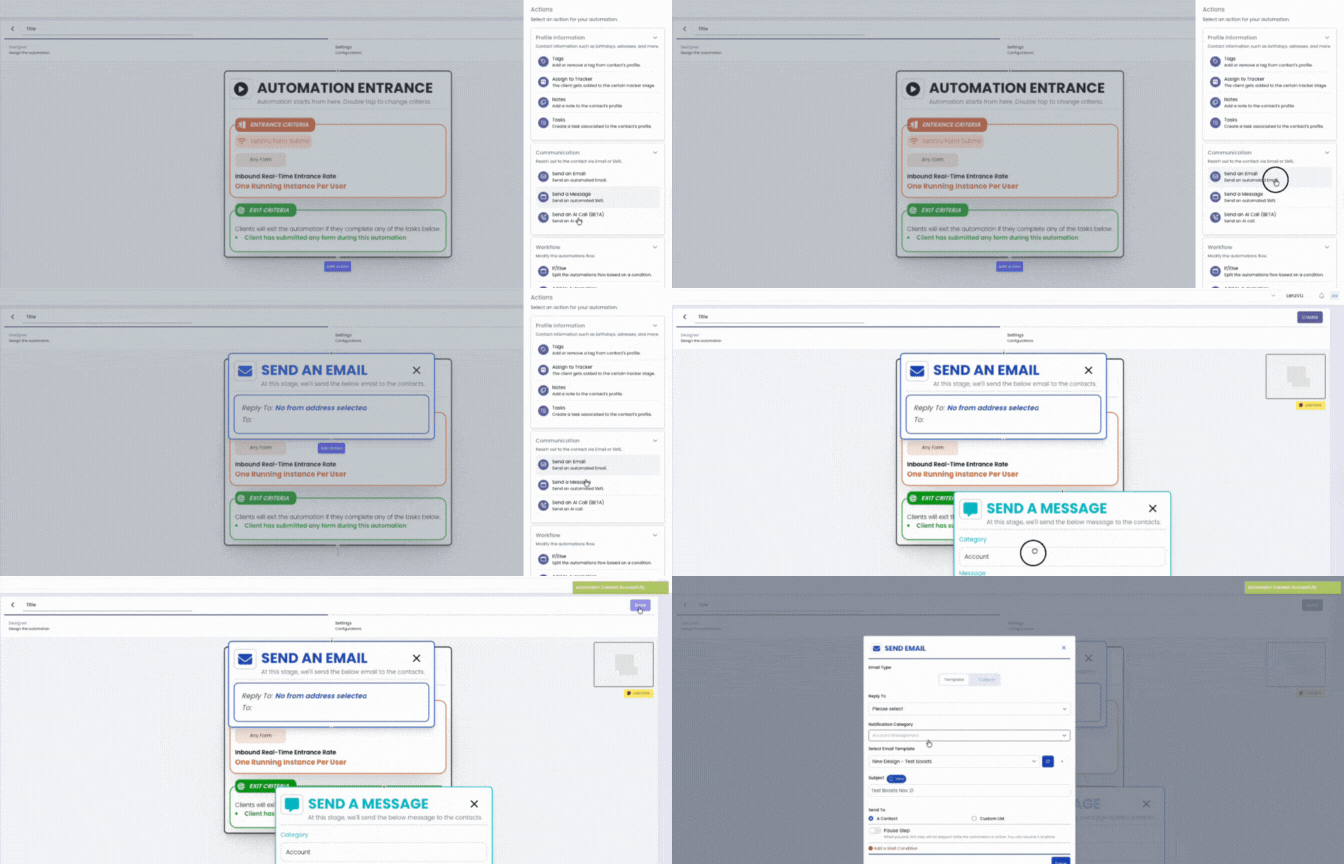
4. Add an Action Step

Now it’s time to tell the automation what to do.

  1. Click Add Action.

  2. Choose a category:

    • Profile Information

    • Communication

    • Workflow

For this example:

Select EmailAdd ActionSend a Message.

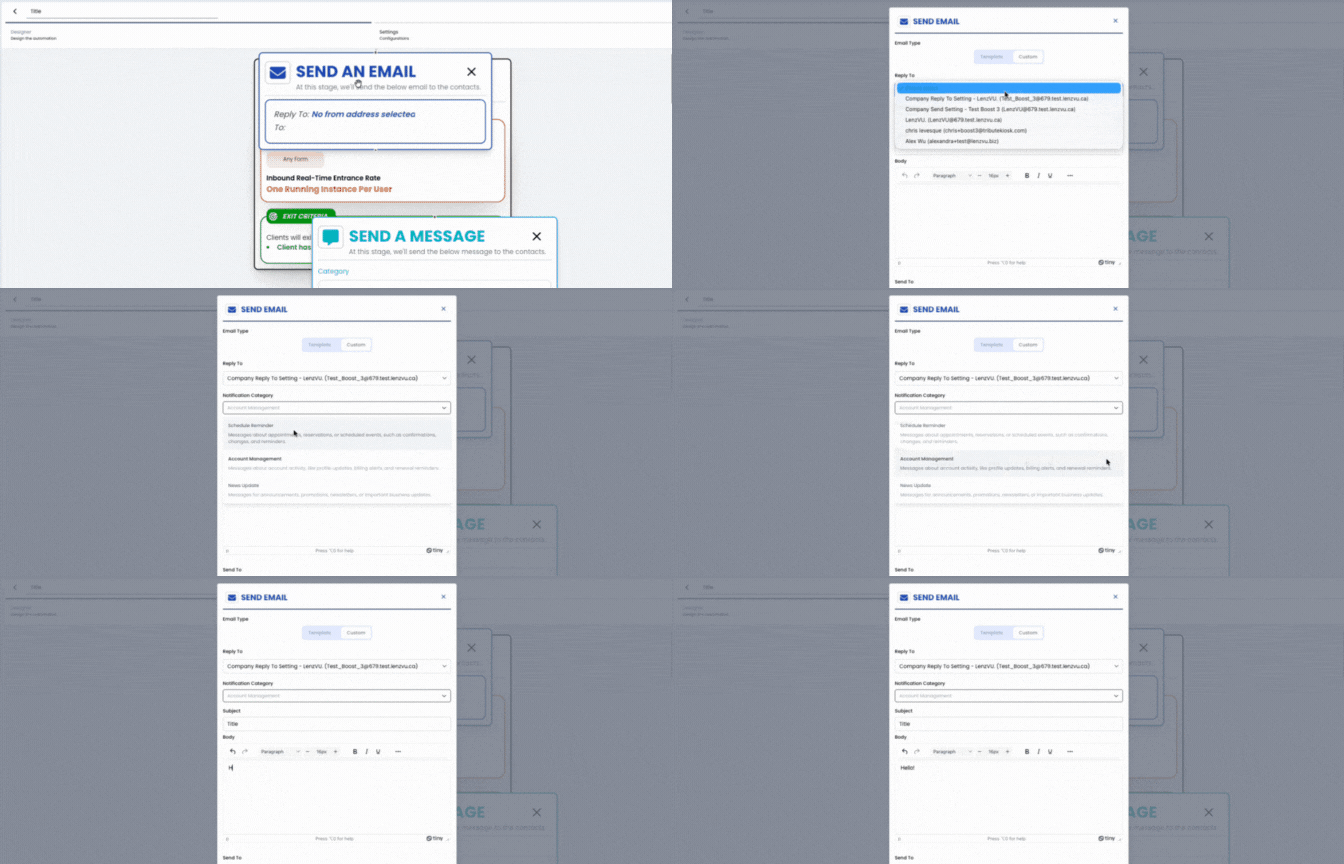
5. Create Your Email Content

  1. Double-click the email action step.

  2. Choose either:

    • A prebuilt template, or

    • A custom-designed message

To personalize your email:

  1. Click the Custom Token icon.

  2. Select Client → First Name.

  3. Click Insert Custom Token.

Type your message, adjust formatting if needed, and click Save.

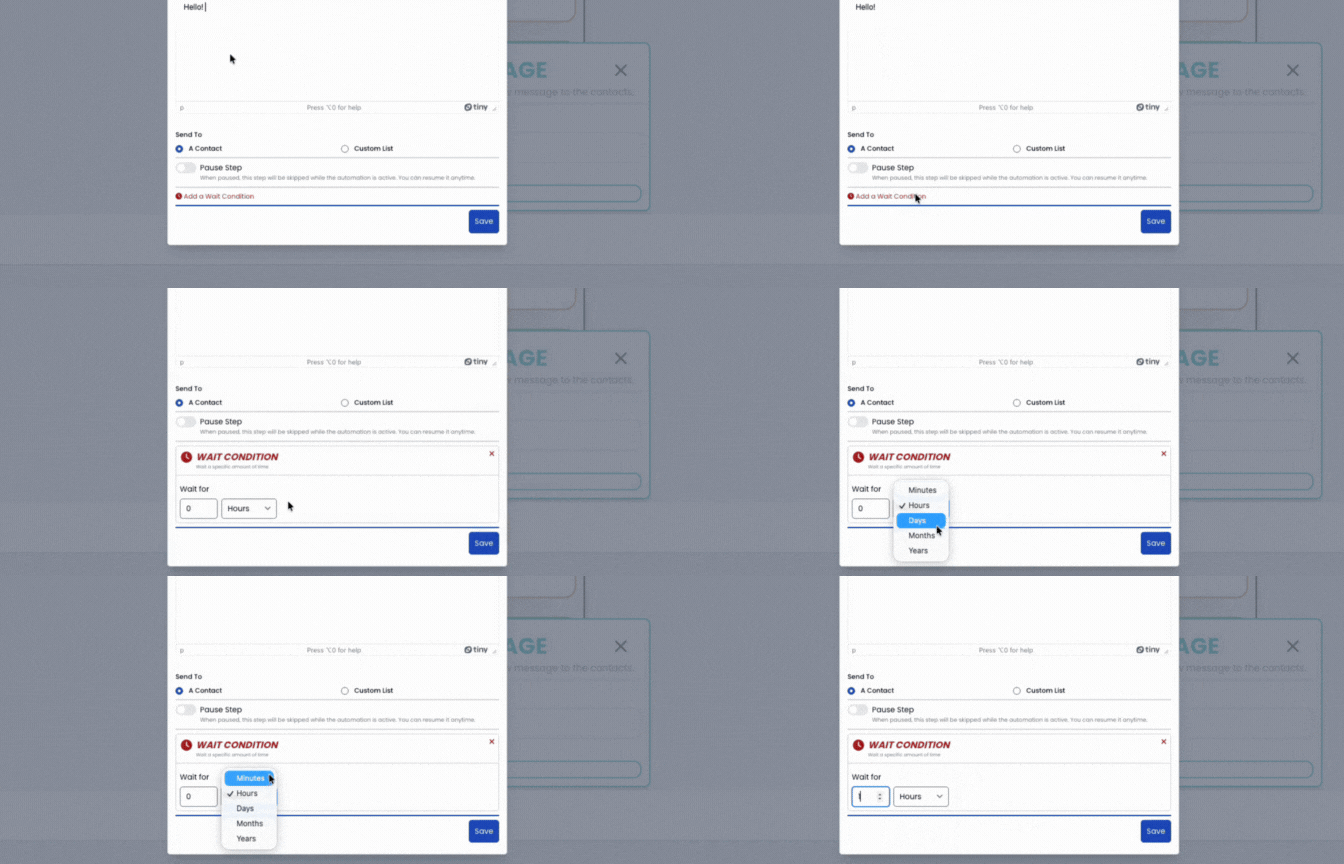
6. Add Wait Conditions (Optional)

ait steps let you add delays between actions. You can set them in:

  • Minutes

  • Hours

  • Days

  • Months

  • Years

This allows you to create multi-step follow-ups, drip sequences, reminders, or long-term nurturing workflows automatically.

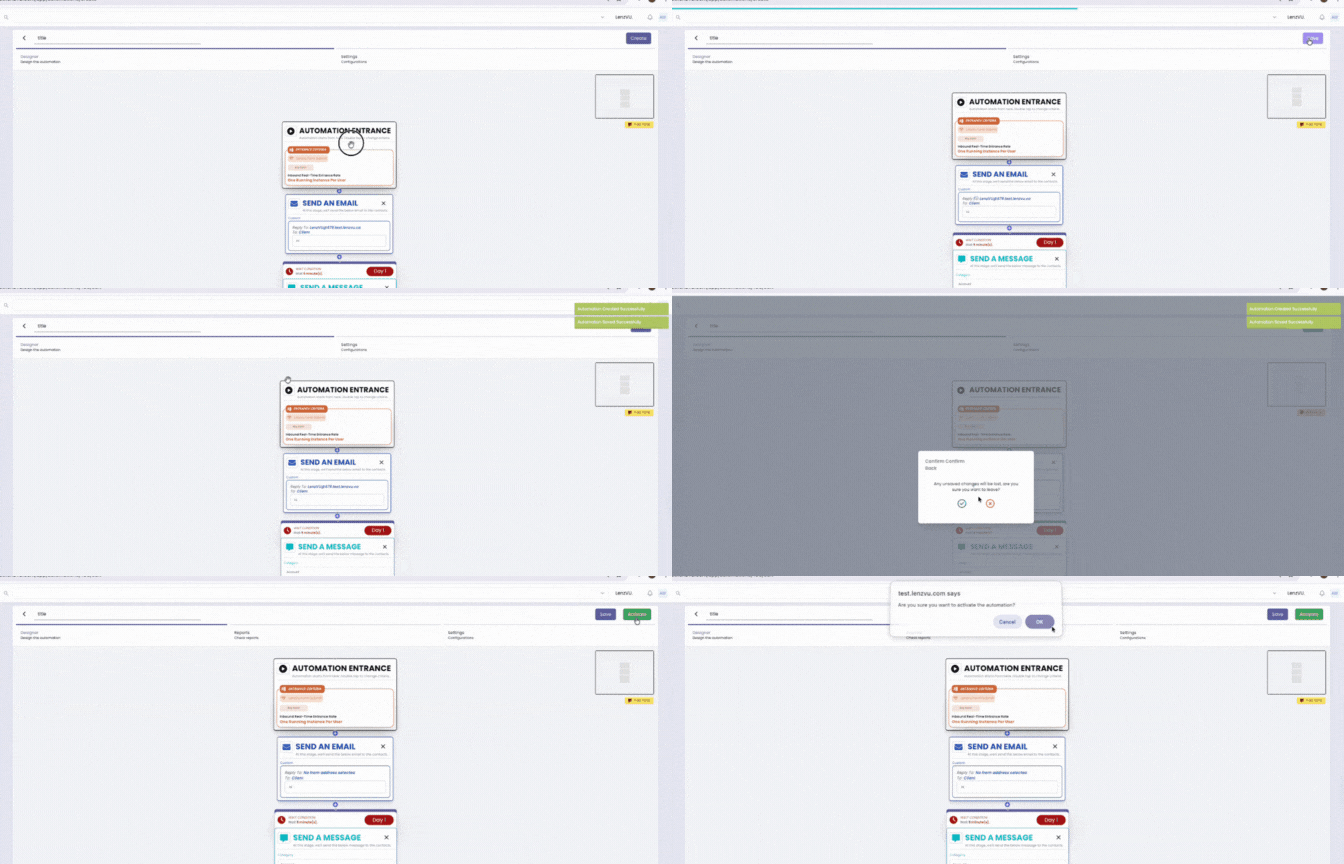
7. Save & Activate Your Automation

Once your workflow is ready:

  1. Click Create in the upper-right corner → then Save.

  2. Click Activate to make it live.

🎉 Your automation is now officially running!

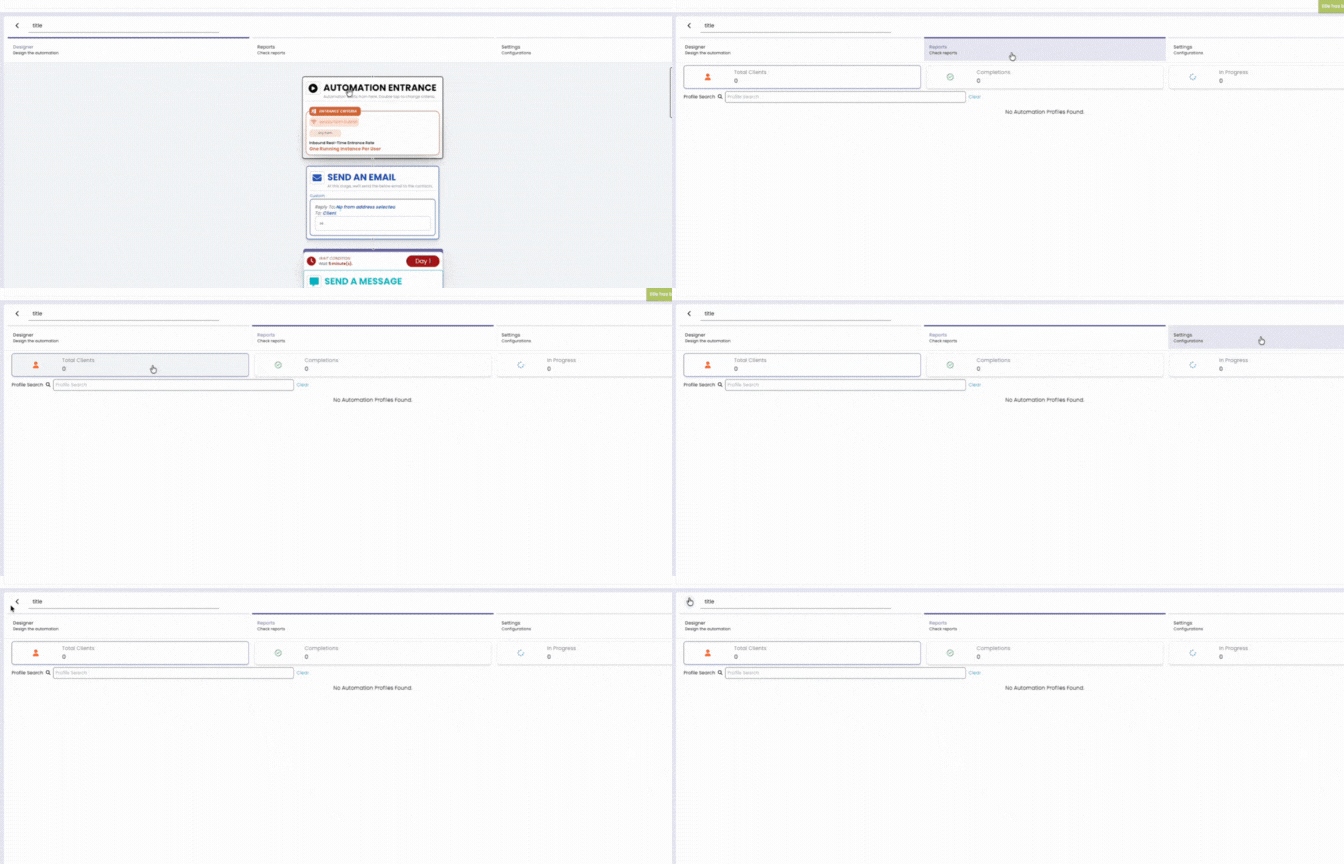
8. View Your Automation Reports

LenzVU gives you reporting tools to see exactly how your automation performs. Go to Reports to see:

  • Who is currently inside the automation

  • Who has completed all steps

  • Who is in progress

Final Thoughts

You’ve now learned what automations are, how they work, and how to build your first one inside LenzVU. Automations save time, improve consistency, and deliver an exceptional client experience, all on autopilot.

Experiment with different actions, delays, and messages to create the perfect workflow for your clients.

Need help? Email support@lenzvu.com
or book a call with our team to get one-on-one guidance.

Share:

More Posts

How to Improve Facebook Ad Results

If you’re a small or medium-sized business running Facebook or Instagram ads, you’ve probably asked yourself: “Why aren’t my ads bringing in real customers?” You’re not alone. And the answer

Send Us A Message

Stop Chasing Clients. Start Growing Them.

Turn leads into loyal customers with smarter marketing and effortless automations.

Fill out the form below to create your LenzVU account.