
Easily add new users to your team and assign them the right role to control what they can access in LenzVU.
Add a New User #
Follow these steps to invite a new user to your account:
- Go to Team → Staff
- Click + Add New (top right)
- Fill in the required details:
- First Name
- Last Name
- Password
- Select a role
- Click Save
- The user will be added to your team and can start using Lenzvu based on the assigned role.
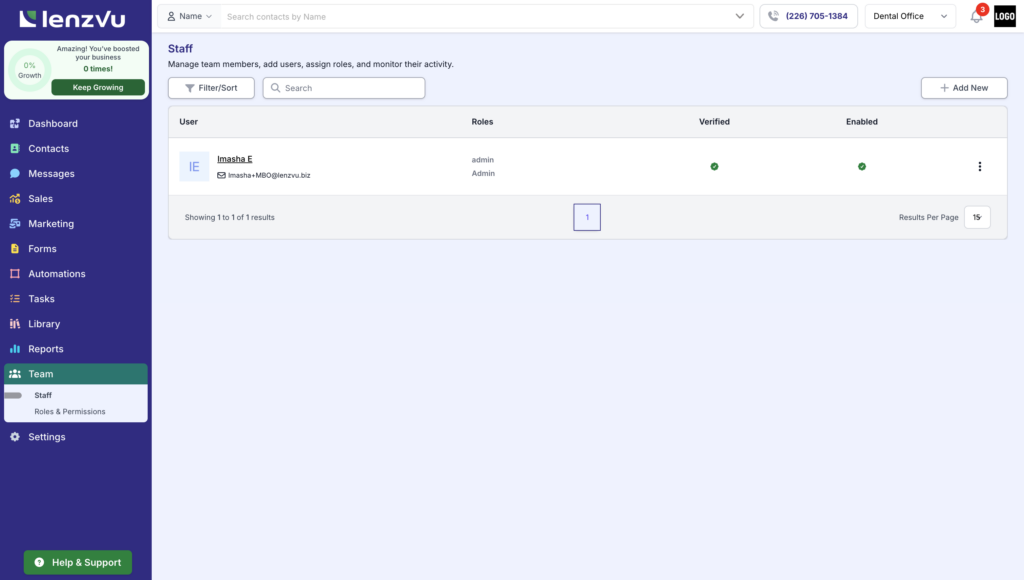
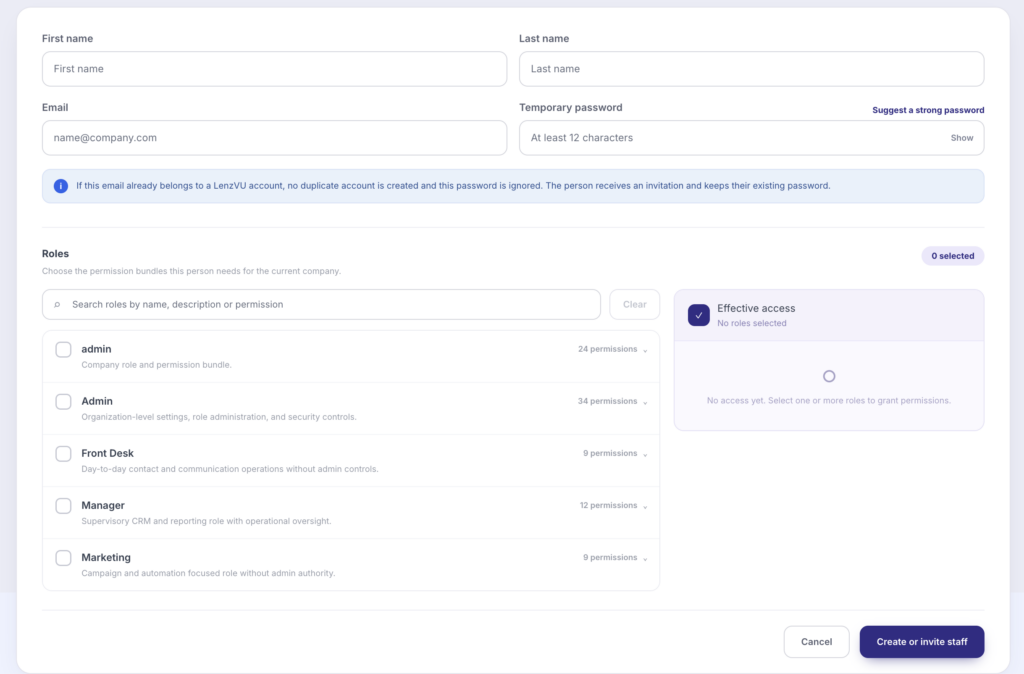
The user will receive an email invitation to join your Lenzvu account.
Assign a Role #
When creating or editing a user, you’ll need to assign a role. Roles determine what the user can see and do in the system.
Lenzvu includes the following default roles:
- Admin
- Manager
- Marketing
- Front Desk
Each role comes with a predefined set of permissions.
? Learn more about roles and permissions: Permissions & User Roles
Create a New Role #
If the default roles don’t fit your needs, you can create a custom role.
- Go to Team → Roles & Permissions
- Click + Add New (top right)
- Enter a role name
- Enter a description
- Select the permissions you want to assign
- Click Save
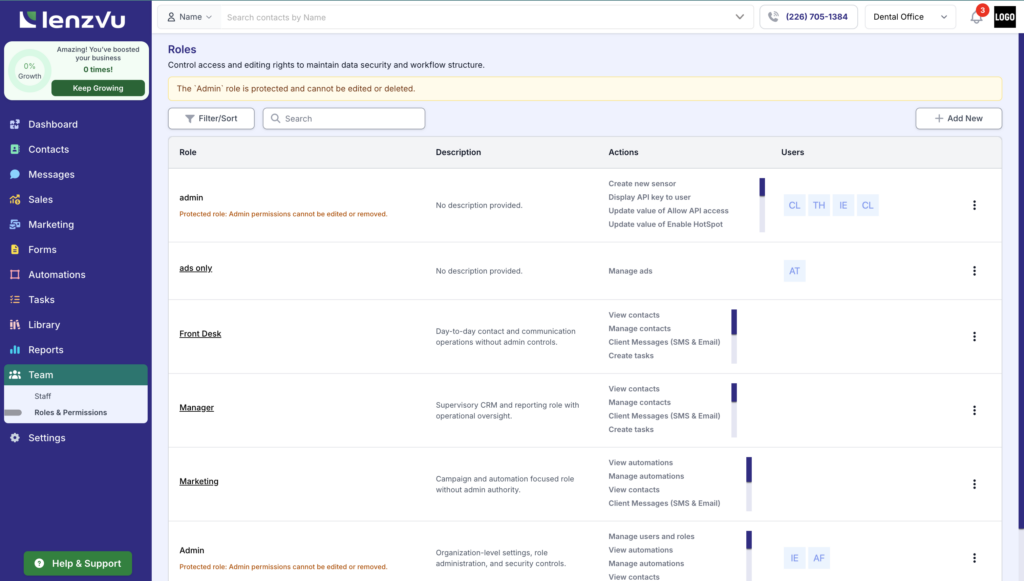
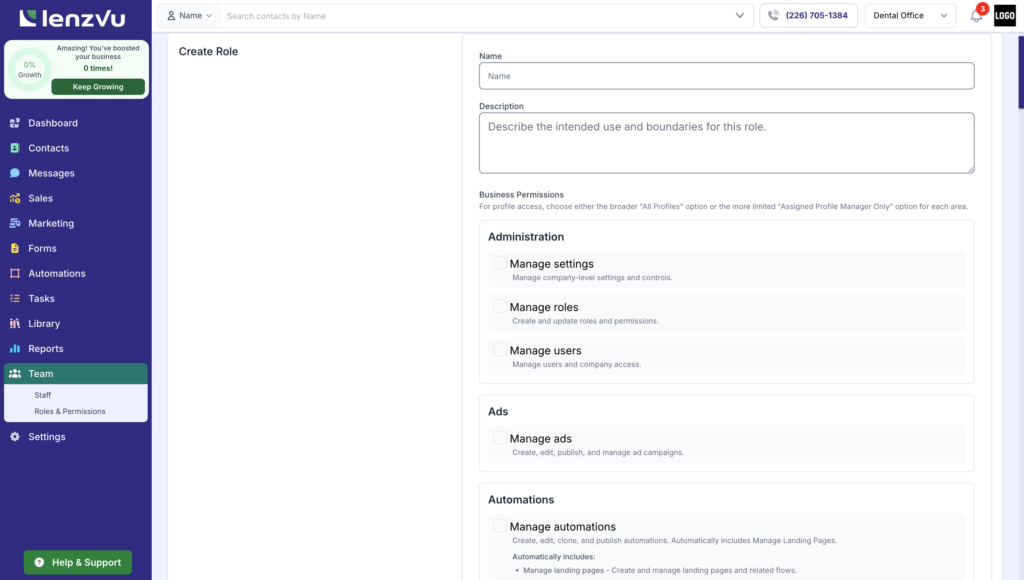
You can customize access across categories like Contacts, Messages, Marketing, Reports, and more.
? See full permission breakdown: Permissions & User Roles
Edit an Existing Role #
To update a role:
- Go to Team → Roles & Permissions
- Find the role you want to update
- Click the elipsis ⋮ (three-dot) menu next to the role
- Select Edit Role
- Update the permissions as needed
- Click Save
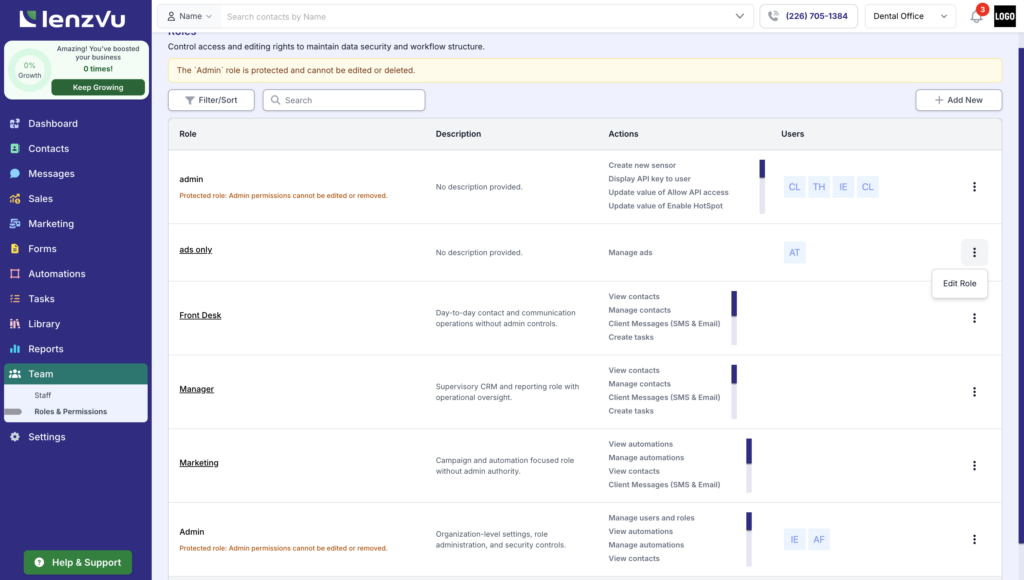
Changes will apply to all users assigned to that role.
Best Practices #
- Assign users to the minimum access level they need
- Use default roles as a starting point
- Create custom roles for specific responsibilities
- Review roles regularly as your team grows


