
- Why Link Tracking matters
- How Link Tracking works in 4 simple steps
- Key terms to know before you start
- Step 1: Create your tracked link
- Step 2: Share your link anywhere
- Step 3: Read your results at a glance
- Step 4: Go deeper with detailed reports
- Click Quality & Identity: separate real interest from noise
- Pipeline Impact: watch clicks move toward the sale
- Click Activity: spot your best days and times
- Sources & Channels: find your best-performing channel
- Templates & Campaigns Using This Link
- People & Click Events: see every click, person by person
- Change History: your link's audit trail
- Manage your links anytime
- Frequently asked questions
- Glossary of link tracking terms
Every link you send is a marketing dollar in motion — but most of the time you never find out where it went. LenzVU’s Link Tracking changes that. Turn any link into a smart link and share it in an email, a text, a QR code, a social post, or even a printed flyer. From that moment on, LenzVU quietly reports back: who clicked, whether they were a real person, and what happened next in your pipeline.
The result is simple: instead of guessing which campaigns work, you can prove it — and put your budget where it pays off. This guide walks you through the whole feature, from your first link to every report, in plain language.
Picture your own campaign as you read. You send a Spring Offer out to your list — let’s say 100 people. Some ignore it, some click, and a handful go on to become paying customers, including one we’ll call Sarah. Throughout this guide we’ll follow that journey — from the moment the link goes out to the sale it closes — so every number ties back to something real in your business. Whatever you sell, the story is the same.
Why Link Tracking matters #
A plain link is a dead end for data. A LenzVU tracked link answers the questions marketers actually care about:
- How many people opened my offer versus just received it?
- Which of those clicks turned into paying customers?
- How much revenue can I honestly credit to this campaign?
- Was that spike in clicks real interest, or just email apps previewing my message?
You get every answer per link, so you can compare campaigns side by side and double down on the ones that convert.
How Link Tracking works in 4 simple steps #
The whole feature runs on one easy loop:
- Create a tracked link and point it wherever you want people to land.
- Share it anywhere — email, SMS, QR code, social, or print.
- People click, and LenzVU matches each click to a contact (or flags it as anonymous).
- See what it earned — clicks, conversions, and revenue tied back to that one link.
The rest of this guide follows those four steps.
Key terms to know before you start #
A few ideas show up all over Link Tracking. Learn them once here and every report will click into place.
- Qualified click — A click from a real person who is matched to a known contact. These are the clicks that count toward your reporting, automations, and points. Previews and bots are tracked, but kept out of the way. Example: Sarah taps your offer from her phone and she’s already in your contacts — that’s a qualified click. An email server automatically opening the link is not.
- Attribution window — How long a link gets credit for what happens after a click. In plain terms: “If this person converts within X days of clicking, this link earns the credit.” The default is 14 days, adjustable per link. Example: Sarah clicks on the 1st and buys on the 10th — inside a 14-day window, so this link gets the credit. If she bought on the 20th, it wouldn’t.
- Known contact vs. anonymous — A known contact is a click LenzVU can tie to a specific person in your list. Anonymous means the visitor hasn’t been matched to anyone yet. Example: Sarah (already in your contacts) is a known contact. A stranger who taps your link from a Facebook post is anonymous — until they buy and become a contact.
- Tracker & stages — Your sales pipeline in LenzVU. Contacts move through stages, and the final success stage is called Won. Example: your stages might be New Lead → Qualified → Won, where “Won” is a closed sale.
Step 1: Create your tracked link #
Click + New Link to open the New Tracked Link form. Here’s what each field does.
| Field | What to enter | Example |
|---|---|---|
| Link Type | Choose one of four: Generic URL (any web address you paste in), Landing Page, Form, or Waiver. Pick Landing Page, Form, or Waiver and LenzVU automatically lists the ones you’ve already created so you just select from the menu — no pasting URLs, and the destination stays managed for you. | “Generic URL” for your website; “Form” to pick an existing sign-up form straight from the list. |
| Name | A friendly label just for you. It’s how the link shows up in your list. | “Spring Offer” |
| Destination URL | The page people land on after clicking. | yourbrand.com/offer |
| Category | Optional grouping to keep related links tidy. | “Promotions” or “Newsletters” |
| Expires | Optional cutoff date. Leave it blank for a link that never expires. | Set it to Apr 30 so your spring promo link stops working after the sale ends. |
| Labels | Optional tags you can pick or create on the spot to filter links later. | “spring-2026”, “email” |
Choose which clicks count (Attribution settings) #
These settings decide which clicks count and for how long. They come pre-set to smart defaults, so you can leave them alone until you have a reason not to.
- Attribution window — How long a click stays creditable (default 14 days). Example: a 14-day window means a sale two weeks after the click still counts.
- Count only likely-human clicks — Keeps previews and bots out of your headline numbers. Example: when Gmail auto-scans your email, that machine “click” won’t inflate your results.
- Count later-matched anonymous — If an anonymous visitor is identified later, their earlier click gets credited back to this link. Example: a stranger clicks today, buys next week and becomes a contact — their first click now counts for this link.
- Allow automation triggers — Lets qualifying clicks kick off your automations, like welcome messages and follow-ups. Example: the moment Sarah clicks, LenzVU auto-sends her a “Thanks for your interest!” text.
Reward engagement automatically (LenzScore) #
LenzScore is LenzVU’s built-in points system for lead scoring and loyalty — a running tally of how engaged each contact is, which you can use to spot sales-ready leads or reward your most loyal customers. Turn it on for this link to award points automatically the moment someone clicks. Set the points per click and pick a category (for example Lead Scoring to flag hot prospects, or a loyalty category to thank repeat customers). Points are awarded once per qualified click and processed quietly in the background. Example: award 10 points per click; after Sarah opens a few of your links, her score climbs and she rises to the top of your “warmest leads” list. For the full setup, see the LenzScore points system guide.
Save your contacts time (Prefill form fields) #
For form links, switch this on to pre-fill a known contact’s first name, last name, email, and phone. Returning contacts skip the busywork, and you get cleaner completions. Example: Sarah opens your sign-up form and her name, email, and phone are already filled in for her.
When everything looks right, click Create link. LenzVU generates a short, shareable public URL for you.
Step 2: Share your link anywhere #
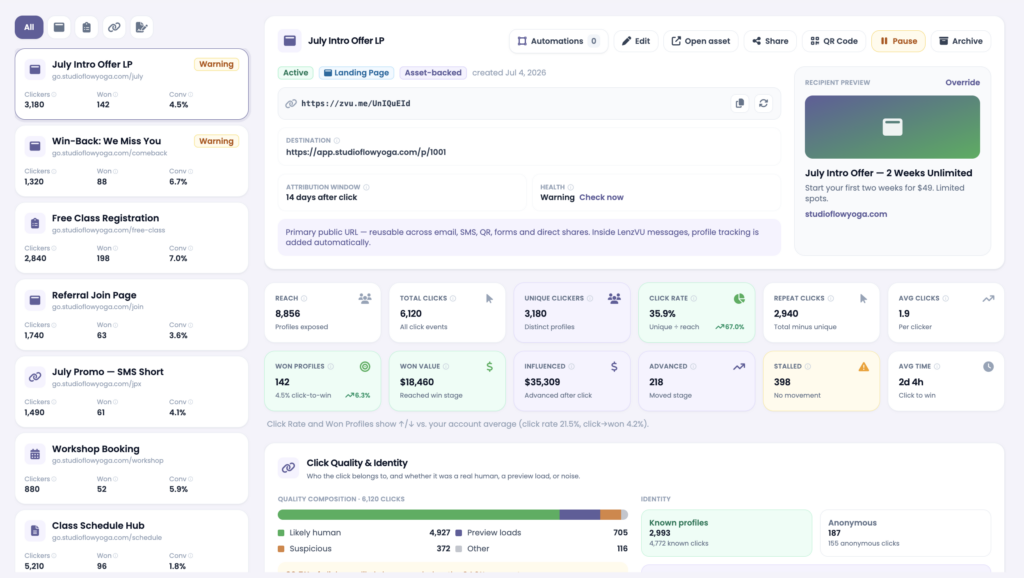
Your link’s detail view has everything you need to get it out into the world.
- Primary public URL — One short link that works across email, SMS, QR, forms, and direct shares. However long or messy your destination URL is, LenzVU shortens it into a clean, tidy link — so it doubles as a URL shortener with tracking built in. Example: a long checkout URL becomes
zvu.me/UniQuEiDthat you can drop into a text. - QR Code — A scannable code for print, signage, or in-person moments. Example: print it on a flyer or counter card so people can scan and sign up on the spot.
- Share — Fast sharing options for the link.
- Open asset — Jump straight to the connected form, landing page, or waiver. Example: click it to preview the sign-up form your link points to.
Send through LenzVU to tie clicks back to each contact #
Here’s the most important thing to know about sharing: when your LenzVU short link is sent through LenzVU, every click is automatically matched to the exact contact you sent it to. You see who clicked, not just how many — with no extra setup. You don’t need any special picker for this; even if you simply drop the shortened link into a LenzVU email or text, the tracking travels with the send and ties back to that recipient. It works by email and SMS, across:
- Email campaigns — a bulk send to a list.
- Individual messages — a single email or SMS to one contact.
- Group messaging — one message sent out to many contacts at once.
- Automations — emails and texts your workflows send automatically.
In the email editor: Insert Link. When you’re composing an email in LenzVU specifically, the editor adds a shortcut — an Insert Link button that drops a tracked link exactly where your cursor is, so you don’t have to paste anything. In that window you can:
- Tracked link — Search your existing links, or hit + New link to create one on the spot, then select it.
- Plain URL — Switch to this tab if you just want a normal, untracked link instead.
- Link text — The words people actually see and click. Example: “Click here” or “Claim your offer.”
- Open in new tab — Keep your message open behind the link when someone clicks.
The flip side: if you share that same link outside LenzVU — on social, in print, or in a forwarded text — it still counts the clicks, but those visitors show up as anonymous until LenzVU can match them to a contact.
Control how your link looks when shared (Override Preview) #
When someone shares your link on social or messaging apps, a preview card pops up (the little box with a title, blurb, and image). Booking and payment pages often have weak or missing preview info — the behind-the-scenes text apps use to build that card — so Override Preview lets you set it yourself:
- Title — The headline on the preview card. Example: “Spring Offer”
- Description — A short supporting line. Example: “Order by April 30 and save 20%.”
- Image URL — The thumbnail people see. Example: a link to your logo image.
Set it once, and your link always looks polished wherever it lands.
Step 3: Read your results at a glance #
Once clicks start rolling in, three areas tell you the headline story.
Quick stats in the sidebar #
Every link in your list shows three numbers at a glance:
| Stat | Meaning | Example |
|---|---|---|
| Clickers | Unique contacts who clicked this link. | 90 different people clicked. |
| Won | Contacts who clicked and reached a Won stage. | 12 of them bought. |
| Conv | Conversion rate — Won ÷ Unique Clickers. | 12 ÷ 90 = 13% conversion. |
Use the tabs above the list to filter by link type, or the search box to jump to a specific link.
Your headline numbers (the metrics grid) #
The cards at the top of a link’s detail view fall into two natural groups. The examples below all follow the same campaign so the numbers connect.
Group 1: Did people see it and click? (reach & engagement)
| Metric | What it means | Example |
|---|---|---|
| Reach | Contacts exposed to this link through email, SMS, or another channel. Each person counted once. | You emailed the offer to 100 people → Reach = 100. |
| Total Clicks | Every click on the link, including repeat clicks from the same person. | People clicked 130 times in total → 130. |
| Unique Clickers | The number of different contacts who clicked. Each counted once. | 90 different people clicked → 90. |
| Click Rate | The share of people who clicked after receiving it — Unique Clickers ÷ Reach. | 90 ÷ 100 = 90%. |
| Repeat Clicks | Extra clicks from contacts who clicked more than once. | 130 total − 90 unique = 40 repeat clicks. |
| Avg Clicks | The average number of clicks per person who clicked. | 130 ÷ 90 ≈ 1.4 clicks each. |
Group 2: Did clicks turn into business? (pipeline & revenue)
| Metric | What it means | Example |
|---|---|---|
| Won Profiles | Contacts who clicked and reached a Won stage. | 12 clickers bought → 12. |
| Won Value | Total value of contacts who clicked and reached a Won stage. | 12 sales × $200 = $2,400. |
| Influenced | Total value of all contacts who clicked — whether or not they reached Won. | The 12 who bought plus 20 still deciding (worth $4,000) → $6,400 influenced. |
| Advanced | Contacts who clicked and moved forward to a later pipeline stage. | 20 clickers moved from “New Lead” to “Qualified.” |
| Stalled | Contacts who clicked but stayed in the same stage with no movement during the attribution window. | 8 clickers are still sitting at “New Lead” after 14 days. |
| Avg Time | The average time it took clickers to reach a Won stage. | On average, people bought 6 days after clicking. |
Won Value vs. Influenced, in one line: Won Value is money already in the door ($2,400 in our example). Influenced is the full value of everyone this link touched, including deals still in play ($6,400) — your bigger-picture, “still cooking” number.
The link’s own details #
Three small cards describe the link itself:
| Card | Meaning | Example |
|---|---|---|
| Destination | The final page contacts reach after any redirects. | Someone taps zvu.me/abc and lands on yourbrand.com/offer. |
| Attribution Window | The crediting period for this link (change it in Edit Link). | 14 days after click. |
| Health | Whether the link works. Healthy = loads cleanly. Warning = possible issues spotted. Broken = unreachable or returning an error. | “Broken” if your offer page moved and the link now shows a “page not found” error. |
Step 4: Go deeper with detailed reports #
Below the headline numbers sit richer reports. You won’t need them every day, but they explain the why behind your metrics.
Click Quality & Identity: separate real interest from noise #
This report shows who each click belongs to, and whether it was a real human, a preview, or noise.
- Quality composition splits raw activity into likely-human clicks versus preview loads — automatic opens by email apps or security scanners, not a person. Only likely-human activity counts as a real marketing click. Example: 9 real clicks from people versus 7 preview loads from email software.
- Identity splits clicks into known contacts versus anonymous visitors. Example: 8 clicks from people you recognize, 1 from someone not yet in your list.
- It also flags how many anonymous visitors were later matched to a contact and credited back to this link. Example: that 1 anonymous visitor buys tomorrow, so their click is now credited here.
The rule to remember: only likely-human clicks tied to a known contact trigger automations. Anonymous clicks (visitors not matched to a contact) and preview/bot clicks are never attributed to your automations — so an unknown visitor or an email scanner can’t accidentally fire a welcome text or a follow-up.
Pipeline Impact: watch clicks move toward the sale #
See how clickers move through your pipeline, three ways:
- Snapshot at Click — Where contacts stood the moment they clicked. Example: when Sarah clicked, she was a “New Lead.”
- Attribution Window — Movement that happened within the crediting period. Example: within 14 days she moved New Lead → Qualified → Won.
- Live Impact — Where those contacts stand right now. Example: today Sarah is a “Won” customer.
You’ll see counts for Won, Advanced, Stalled, and Lost, plus value cards for Value at Click (the deal’s worth when they clicked), Current Pipeline Value (what’s open right now), and Won Value (what’s closed).
Click Activity: spot your best days and times #
A chart of likely-human clicks and unique clickers over time, with noise shown separately. Switch between Hourly, Daily, and Weekly to learn exactly when your audience engages — and when to hit send. Example: the chart shows most clicks land the evening you send, so you start emailing at 6pm.
Sources & Channels: find your best-performing channel #
This tells you where your qualified clicks came from.
- Channels come from the link’s context — the delivery method LenzVU sees. Example: “Email” for clicks from your campaign, “Direct” when someone opens the link straight from a text or types it in.
- Top Sources use canonical attribution — a fancy way of saying LenzVU’s single best guess for where a click truly originated. Example: 8 of your qualified clicks are attributed to Email.
Together, they reveal which delivery method is pulling its weight.
Templates & Campaigns Using This Link #
One link can live in many places, so this section lists every template (a reusable message layout you can send again and again) and campaign (a specific send to a specific audience) it’s embedded in, how each performed, and when it last went out. It also notes any external / direct usage — tracked clicks from outside LenzVU. Example: this link appears in your “Spring Email Template” and was sent in the “LT July 17” campaign, plus 5 clicks came from a flyer QR code.
People & Click Events: see every click, person by person #
The most detailed view: every click, who it belongs to, and where they went next. Filter the list with these buttons:
| Filter | Shows | Example |
|---|---|---|
| All | Every recorded click. | The full list, real people and previews together. |
| Known Profiles | Clicks matched to a contact. | Sarah and other people in your list. |
| Anonymous | Clicks from visitors not yet matched to a contact. Not counted toward automations. | Someone who found your link on Facebook but isn’t a contact yet. |
| Preview / Not counted | Clicks from email previews, bot scanners, or other non-human sources. Tracked for transparency, but not counted toward automations. | Outlook’s scanner opening the link before Sarah ever read the email. |
You’ll also see Won (clicked and reached Won — Sarah bought), Advanced (clicked and moved forward — moved to “Qualified”), and Stalled (clicked but stayed put — still a “New Lead”).
Click Details: the full story of a single click #
Click Details on any row to open a side panel with everything LenzVU knows about that person’s clicks. At the top you’ll see their name and how many LenzScore points they’ve earned from this link (e.g. 30 points from three clicks). The panel has two sections.
Click History — a timeline of each individual click. A person can have several, and every one is listed with its own date and time and a quality badge (Likely Human or Preview Load). Expand any click to see:
- Device, Browser, OS, and IP behind the click.
- Referrer and UTM Source / Medium, when present. A referrer is the page someone came from; UTM tags are labels you add to a link to track campaigns.
- Click Context — the channel it came through. Example: Email.
- Why this quality — the reasoning behind the human-or-preview rating, shown with a confidence score. Example: 100% — “browser-like user agent, navigation fetch mode, language header present” (in plain terms: it behaved like a real person on a real browser).
Trackers & Stages — how this click affected your pipeline. A summary at the top shows the total influenced value, won value, and number of trackers touched (e.g. $200 influenced · $0 won · 1 tracker). Below it, each tracker names the contact’s stage movement, tags it as Advanced or Stalled, and shows the value influenced. Example: “New Lead → Qualified, Advanced, $200 influenced.” A View tracker shortcut and an Open profile button let you jump straight to the source.
Change History: your link’s audit trail #
A simple record of who changed this link and when — for example when it was created or when its health status changed. Handy when a metric shifts and you want to know if a setting moved with it. Example: “Created by John E on Jul 17” and “Health Status Changed by System on Jul 17.”
Manage your links anytime #
You can adjust a link whenever you like without breaking the short URL you’ve already shared.
- Edit — Update the name, category, labels, expiry, attribution window, LenzScore, and prefill settings. (Landing Page, Form, and Waiver links point to something you built in LenzVU, so their destination is managed automatically and stays locked.) Example: extend the attribution window from 14 to 30 days for a slower-selling offer.
- Pause — Temporarily stop the link from counting new activity. Example: pause a promo link the day the sale ends.
- Archive — Retire a link you no longer need while keeping its history. Example: archive last year’s spring offer but keep its results for reference.
- Automations — View and manage the automations attached to this link. Example: the auto-text that fires when someone clicks.
Frequently asked questions #
What’s the difference between Total Clicks and Unique Clickers? Total Clicks counts every click, so one eager person clicking five times adds five to Total Clicks but only one to Unique Clickers.
Why do some clicks say “Not counted”? They came from email previews, bot scanners, or other non-human sources — for example Gmail automatically opening your link to scan it. LenzVU still logs them for transparency, but keeps them out of your real marketing numbers.
How do I change the crediting period for a link? Open Edit Link and adjust the Attribution Window — say from 14 days to 30. This also sets the window used for the Stalled metric.
Why is someone marked “Stalled”? They clicked your link but haven’t moved to a new pipeline stage within the attribution window — for example, someone who clicked but is still a “New Lead” two weeks later. It’s a clear signal they may need a nudge.
A visitor clicked before they were in my contacts. Do I lose that click? Not if Count later-matched anonymous is on. Once that visitor becomes a known contact — say they buy next week — their earlier click is credited back to the link.
Why do some clicks show a name while others are anonymous? A click is tied to a specific person automatically when the link is sent through LenzVU — an email campaign, an individual message, a group send, or an automation. If the same link is opened from a public share (social, print, or a forwarded text), the visitor stays anonymous until LenzVU can match them to a contact.
Can I use Link Tracking just to shorten a long URL? Absolutely. Paste any long or messy web address as the destination and LenzVU hands you a clean short link — and you get all the click tracking and reporting for free, even if shortening was all you were after.
Won Value or Influenced — which should I watch? Look at Won Value for revenue that’s already closed ($2,400 in our example), and Influenced for the total value of everyone the link touched, open deals included ($6,400).
Glossary of link tracking terms #
- Reach — Contacts exposed to the link; counted once each. E.g. 100 people emailed.
- Qualified click — A likely-human click tied to a known contact. E.g. Sarah taps the link from her phone.
- Attribution window — How long results stay credited to a link after a click (default 14 days). E.g. a sale 10 days later still counts.
- Known contact — A click matched to a specific person in your list. E.g. an existing customer.
- Anonymous — A click that couldn’t be matched to a contact. E.g. a stranger from a Facebook post.
- Preview / Not counted — Automated, non-human clicks kept out of your numbers. E.g. an email scanner opening the link.
- Advanced — Clicked and moved to a later pipeline stage. E.g. New Lead → Qualified.
- Stalled — Clicked but stayed in the same stage during the window. E.g. still a New Lead after 14 days.
- Won — Clicked and reached a success stage. E.g. became a paying customer.
- Influenced — Total value of everyone who clicked. E.g. $6,400 across closed and open deals.
- LenzScore — LenzVU’s built-in lead-scoring and loyalty points system; points are awarded to contacts on a qualified click. E.g. 10 points per click.


