
LenzVU Tasks turns every to-do into a card with an owner, a due date, and a status. Create tasks, assign them to a person or a role, watch deadlines on a board or in a list, and keep your whole team’s work in one place. This guide walks through LenzVU Tasks step by step.
Meet Maya. She runs the front desk at Bright Smile Dental, and her old system was a mix of sticky notes, a shared inbox, and hoping someone remembered. A patient asks to be called back about a sore tooth. A supplier invoice needs checking. A hygienist needs a chart pulled before Thursday. None of it lives anywhere she can see at a glance, and the things that slip are always the ones a patient notices.
Tasks fixes that. Every to-do becomes a card with an owner, a due date, and a status, and Maya can see the whole board in one screen.
Step 1: Open the task board #
In the left menu, click Tasks.
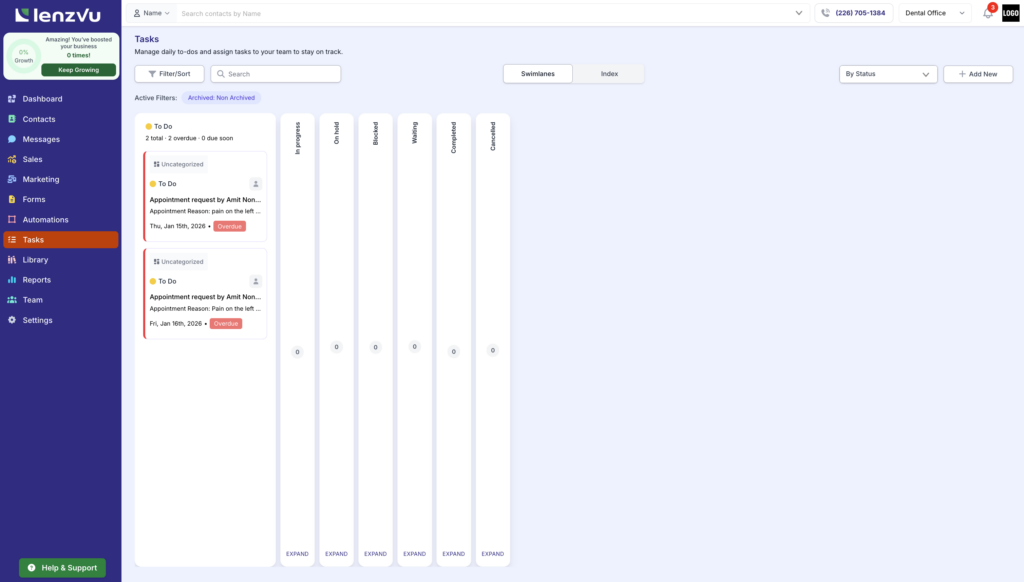
The board opens with everything that isn’t archived. Above the board you’ll find the four controls you’ll use most:
Filter/Sort opens a panel where you narrow the board down by status, deadline, priority, person, client, and more.
Search finds a task by its title or description text.
Swimlanes / Index switches between the card board and a spreadsheet-style list.
Add New creates a task.
Under those controls, Active Filters shows what’s currently applied as small chips. Maya’s board always shows Archived: Non Archived, because LenzVU hides archived tasks by default so old work doesn’t clutter the view. Chips with an ✕ can be cleared with one click.
Good to know: The Archived filter is always on in some form. If you’re hunting for a task that seems to have vanished, open Filter/Sort and switch Filter By Archived to see archived tasks instead.
Step 2: Create a task #
Click Add New, and fill in what you know. Nothing here is mandatory except the title, so a rushed task at 4:55 p.m. is still a real task.
| Field | What it does | Maya’s example |
|---|---|---|
| Title | The one-line name of the task, shown on the card and in the list | Call Amit back about left-side pain |
| Description | Room for the detail the assignee will need | Prefers a phone call, asked for tomorrow at 2 p.m. |
| Status | Where the task sits in your workflow | To Do |
| Category | Groups tasks by type of work, so you can filter later | Patient follow-up |
| Priority | Low, Medium, or High | High |
| Estimated Time to Complete | A number plus a unit, for planning the day | 15 minutes |
| Due Date | The date the task is measured against | 2026-01-15 |
| Assignee | The specific person responsible | Nadia (hygienist) |
| Role | Assign to a job function instead of a person, so whoever’s on shift can pick it up | Front Desk |
| Clients | Links the task to one or more contacts in LenzVU | Amit N. |
| Attachments | JPG or PDF files up to 10 MB each | Referral form scan |
Your changes save as you type — look for the green Saved marker under the task title. There’s no separate save button to forget.
Tip: Assignee and Role work together, not against each other. Use Assignee when one person owns it. Use Role when the work belongs to a desk rather than a human, like “whoever is on reception this morning.” Each has its own Clear button if you change your mind.
Linking a client matters more than it looks. Once Amit is attached to the task, the task travels with his record, so the next person who opens his profile sees that a callback is owed. That’s the difference between a CRM and a to-do app.
Step 3: Pick the view that matches how you think #
LenzVU gives you two views of exactly the same tasks.
Swimlanes #
The board view. Tasks appear as cards in vertical lanes, and each lane header carries a running summary like 2 total · 2 overdue · 0 due soon, so you can read the health of a lane without opening anything.
Empty lanes collapse into thin vertical rails with a 0 on them and an EXPAND link at the bottom, which keeps a mostly-empty board from feeling like a wall of nothing.
Each card shows its category chip, its status, the assignee’s avatar, the title, the first line of the description, the due date, and an Overdue badge when it’s late. Overdue cards also carry a red left edge, so lateness is visible from across the room.
The dropdown on the right of the toolbar decides what the lanes represent:
| Grouping | Lanes you get | Use it when |
|---|---|---|
| By Status | To Do, In progress, On hold, Blocked, Waiting, Completed, Cancelled | You want to see workflow — what’s moving and what’s stuck |
| By Role | My Tasks, one lane per team role, Unassigned Tasks, Open Tasks | You want to see ownership — who’s carrying what, and what nobody has picked up |
Maya starts her morning By Status to find anything stuck in Blocked, then flips to By Role to check that the Unassigned lane is empty before the clinic opens.
Index #
The list view. The same tasks in a sortable table with columns for Task, Priority, Associated Staff, Due Date, and Associated Clients, plus the created and last-updated dates on the right of each row. Pagination sits at the bottom, along with a Results Per Page control.
Index is the better view when you’re scanning many tasks at once, comparing due dates, or checking who’s been assigned what. Swimlanes is the better view when you’re actually working the queue.
Heads up: The grouping dropdown only appears in Swimlanes. Index isn’t grouped into lanes, so there’s nothing for it to control.
Step 4: Narrow the board to the work in front of you #
Click Filter/Sort and a panel slides in from the right. Every filter is optional, and they stack.
| Filter | What you can pick | Why you’d reach for it |
|---|---|---|
| Status | To Do, In Progress, On Hold, Blocked, Waiting on Client, Completed, Cancelled | Pull up everything sitting in Blocked before a team huddle |
| Deadline Status | Overdue, Due Today, Upcoming | Answer “what has to happen today?” in one click |
| Category | Your own task categories | Look at only patient follow-ups and ignore admin work |
| Priority | Low, Medium, High | Triage when the day has gone sideways |
| Assignee | Any team member | Check Nadia’s plate before handing her something new |
| Role | Any role in your team setup | See everything the Front Desk owns, whoever’s on shift |
| Associated Client | Search for a contact | Pull every open task tied to Amit before you call him |
| Task Creator | The person who made the task | Find the requests you raised yourself last week |
| Archived | Archived or Non Archived | Dig up something you archived by mistake |
| Completion Status | Complete or Incomplete | Hide finished work and look only at what’s live |
| Sort By | Sort options for the current view | Put the oldest overdue task at the top |
Maya’s Monday filter is two clicks: Deadline Status: Overdue plus Completion Status: Incomplete. That’s her real to-do list, and it’s usually shorter than she feared.
Tip: Whatever you apply shows up as a chip under the toolbar, so you always know why the board looks the way it does. If the board seems suspiciously empty, read the chips before you panic.
Step 5: Work a task #
Click a card and a detail panel opens on the right without taking you off the board.
At the top, quick-read chips tell you the state of things at a glance: Overdue, Normal Priority, Uncategorized. Below that, four summary boxes:
Assigned To — the person on the hook, or Unassigned.
Due Date — the full date and time it’s measured against.
Company / Contact — the linked client, or “No related contact.”
Source — where the task came from. A task Maya typed herself shows Task board, which is how she can tell hand-made tasks apart from ones that arrived through another part of LenzVU.
Under the summary sits the full Description, and beneath that, the Task Log.
The Task Log is where the story lives #
The log is for internal notes: mention teammates or record follow-up context as the task moves. Type into the comment box and click “Add” to add it. A fresh task reads “No logs available for this task.”
This is the part that saves Maya on Wednesday afternoon. She tries Amit twice, gets voicemail both times, and logs it. When the task lands on a colleague’s plate on Thursday, they don’t call him a third time and annoy him — they can see exactly what’s already been tried.
Three ways to close the loop #
At the bottom of the panel you get Edit, Archive, and Complete. The same three actions live behind the ⋮ menu at the end of each row in Index view, so you can clear things without opening anything.
| Action | What happens | When to use it |
|---|---|---|
| Edit | Opens the full task screen where every field is editable | The due date moved, or the task needs to change hands |
| Archive | Removes the task from the default board without deleting it | The task is no longer relevant, but you want the record |
| Complete | Marks the work done | Amit is booked in and the follow-up is closed |
Complete and Archive are not the same thing, and the difference matters when you look back. Complete means it happened. Archive means it stopped mattering. Keeping them separate is what makes your task history worth reading three months from now.
Need to open the full editing screen instead? Edit takes you there, and Back To Tasks brings you home. The Activity Log button in the top corner of that screen shows the change history for the task, with a count of entries beside it.
What Maya’s Monday actually looks like now #
She opens Tasks, sets Deadline Status: Overdue, and finds two patient callbacks sitting in To Do from last week. She assigns the first to herself, the second to the Front Desk role because she’ll be in the back office after ten. She switches the grouping to By Role, confirms nothing is left in Unassigned, and drags the supplier-invoice task into Blocked with a log entry explaining she’s waiting on a statement.
Nine minutes. No sticky notes.
Frequently asked questions #
What’s the difference between assigning to a person and assigning to a role? An Assignee is one named person who owns the task. A Role assigns the task to a job function, so whoever is covering that role can pick it up. Roles work well for shift-based work where the right owner depends on the day.
Why can’t I find a task I know I created? Three likely reasons, in order. The board hides archived tasks by default, so check Filter By Archived. A filter chip may be narrowing the view — read the chips under the toolbar. Or the task is finished and a Completion Status: Incomplete filter is hiding it.
Does completing a task delete it? No. Completing marks the work done and keeps the record, including its description and task log. Archiving also keeps the record and just moves the task out of the default view.
Can two people work on the same task? A task has one Assignee, but the Task Log is shared, so anyone with access can leave notes, mention a teammate, and pick up where the last person stopped.
What files can I attach? JPG and PDF files, up to 10 MB each.
Do I need to save my changes? No. The task screen saves as you go and shows a green Saved marker under the title.
Why do some lanes look like thin vertical strips? Those lanes are empty. LenzVU collapses them to save space and shows a 0 count. Click EXPAND at the bottom of a rail to open it back up.
What does “Source” mean on a task? It records where the task came from. Tasks you create by hand on the board show Task board.
Glossary #
Task: A single unit of work with an owner, a due date, and a status.
Swimlanes: The card-board view, where tasks sit in lanes grouped by status or by role.
Index: The table view, with sortable columns and pagination.
Lane: One vertical column on the Swimlanes board.
Status: Where a task sits in your workflow: To Do, In Progress, On Hold, Blocked, Waiting on Client, Completed, or Cancelled.
Deadline Status: How a task sits against its due date: Overdue, Due Today, or Upcoming.
Category: Your own labels for types of work, used for grouping and filtering. Tasks without one show as Uncategorized.
Assignee: The specific team member responsible for the task.
Role: A job function you can assign work to instead of a named person.
Associated Client: A LenzVU contact linked to the task, so the task shows up in the context of that relationship.
Task Creator: The team member who created the task.
Log: The internal note thread on a task, for mentions and follow-up context and The record of changes made to a task.
Archive: Moves a task out of the board(Hides from the board) without deleting it.


