
- What connecting a mailbox to LenzVU does
- Before you connect Gmail or Outlook
- Step 1: Open your LenzVU integration settings
- Step 2: Connect your Google Workspace or Microsoft 365 account
- Step 3: Choose what LenzVU imports from your mailbox
- Step 4: Connect Outlook to LenzVU
- Step 5: Connect your calendar
- Recommended email integration settings
- Troubleshooting the Gmail and Outlook connection
- Frequently asked questions
- Glossary
Connect your Google Workspace or Microsoft 365 mailbox to LenzVU, choose exactly which emails get imported, reply to clients from your own address, and control who can see the messages. A step by step guide to the LenzVU email integration for Gmail and Outlook.
Meet Hayley. She sells kitchen renovations at Northline Interiors, and most of her work lives in her inbox. A client asks whether the revised quote ever went out. Hayley searches Gmail, finds the thread, and realises her colleague answered a follow up two weeks ago that nobody logged in the CRM. The information exists. It just does not exist anywhere the team can see it.
Connecting her mailbox fixes that. Once Gmail is linked, the emails Hayley chooses to import land beside the right contact in LenzVU, and every reply she sends from a contact profile goes out from her real Gmail address instead of a generic system sender.
What connecting a mailbox to LenzVU does #
The email integration gives you four things, and each one is a separate toggle you control:
- Import brings message metadata into LenzVU and stores full message bodies privately inside LenzVU, attached to the matching contact.
- One to one sending routes replies and direct sends from a contact profile through your connected mailbox, so the client sees your normal address.
- Matching rules decide which contact a message attaches to, and whether LenzVU is allowed to create a new contact when it cannot find one.
- Privacy controls decide who inside your workspace can see imported messages.
Nothing is imported and nothing is sent until you switch it on. Connecting an account only creates the link. Every option below starts in the off position.
Before you connect Gmail or Outlook #
You connect your own mailbox from your own profile. Nobody can connect it for you, and connecting it does not give teammates access to your inbox.
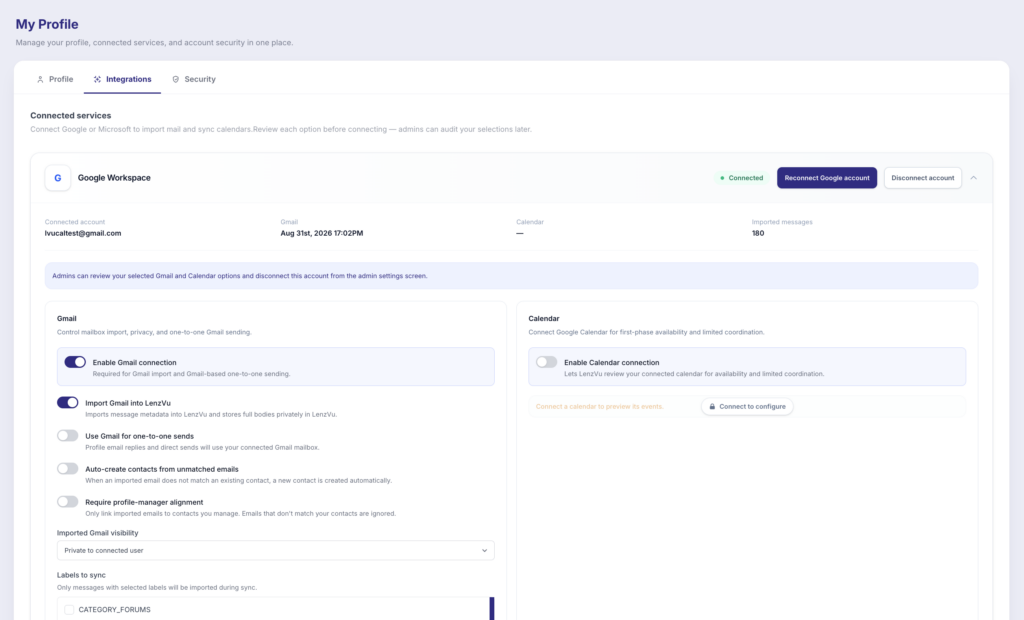
Your admin does keep oversight. As the banner on the screen says, admins can review your selected Gmail or Outlook and Calendar options and disconnect the account from the admin settings screen. Treat your selections as visible to whoever runs your workspace.
Step 1: Open your LenzVU integration settings #
Click your profile, then open the Integrations tab. You will see two tabs beside it, Profile and Security, and one section below called Connected services.
Connected services lists both providers:
- Google Workspace, covering Gmail and Google Calendar
- Microsoft 365, covering Outlook Mail and Microsoft Calendar
Each provider shows a status pill on the right. Hayley’s says Not connected, next to a Connect Google account button. Below the button, every setting is visible but greyed out, with a small Connect to configure lock over the panel.
Why are the toggles dimmed? LenzVU shows you the full set of options before you authorise anything, so you can read what you are agreeing to first. The controls unlock after the account is connected.
Step 2: Connect your Google Workspace or Microsoft 365 account #
Click Connect Google account (or Connect Microsoft account) and sign in with the account whose mail you want in LenzVU. Approve the permission screen your provider shows you, and you will land back on the Integrations tab with the status pill switched to connected.
Hayley signs in with hayley@northlineinteriors.ca, the address her clients already reply to.
Use your work account, not a personal one. The mailbox you connect becomes your sending address for one to one email. A personal Gmail on a client quote undoes a lot of careful branding.
Step 3: Choose what LenzVU imports from your mailbox #
Now the Gmail panel is live. Work down it in order, because the first toggle controls everything under it.
Enable Gmail connection #
Enable Gmail connection is required for Gmail import and Gmail based one to one sending. Leave it off and the rest of the panel stays inactive. In the Microsoft 365 card the same switch is called Enable Outlook connection.
Import Gmail into LenzVU #
Turn this on to import message metadata into LenzVU and store full bodies privately in LenzVU. This is the toggle that makes email history appear on a contact profile.
Hayley turns it on, and the quote thread with her client Priya moves from “somewhere in my inbox” to a visible entry on Priya’s contact record, where her colleague can see it was answered and when.
Labels to sync in Gmail, folders to sync in Outlook #
This is the setting that decides how much of your mailbox LenzVU ever touches, and it is the one most worth slowing down for.
Only messages with the labels or folders you select are imported during a sync. Before you connect, this section reads Connect Gmail to choose labels or Connect Outlook to choose folders, because LenzVU has to see your mailbox before it can list them.
| Provider | Setting name | What you pick | Example |
|---|---|---|---|
| Gmail | Labels to sync | Gmail labels | Hayley selects Clients and Quotes, and leaves Newsletters and Personal unselected |
| Outlook | Folders to sync | Outlook mail folders | A colleague on Microsoft 365 selects Inbox and Sales Enquiries, and leaves Archive alone |
What syncs: LenzVU imports up to 25 messages from the labels or folders you select, covering the past 180 days. Anything older than that, and anything outside your selection, stays in your mailbox untouched.
Hayley’s Clients label holds two years of correspondence. What lands in LenzVU is the recent, active part of it, which is also the part her team actually needs when a client calls.
Tip: label first, connect second. If your client mail is currently spread across your whole inbox, spend ten minutes applying one label or moving mail into one folder before you finish setup. Selecting a single tidy label is far easier than trying to filter noise out afterwards.
Use Gmail for one to one sends #
With this on, profile email replies and direct sends use your connected Gmail mailbox. The client sees a normal message from you, in the thread they already have, rather than an email from a platform address they do not recognise.
This applies to one to one email only, meaning the replies and direct sends you make from a contact profile. Bulk campaigns and automations keep using your usual LenzVU sending setup.
Hayley turns it on, replies to Priya from her contact profile, and the message appears in Priya’s inbox from hayley@northlineinteriors.ca. It also appears in Hayley’s own Gmail Sent folder, exactly where she would look for it.
Auto create contacts from unmatched emails #
When an imported email does not match an existing contact, a new contact is created automatically.
This one is a genuine fork in the road, so decide deliberately:
| Setting | Result | Best for |
|---|---|---|
| On | Every new email address you correspond with becomes a LenzVU contact | Sales roles who want no lead to slip, and who are comfortable tidying up later |
| Off | Only mail matching contacts you already have gets attached | Teams with a clean, curated database who do not want suppliers, recruiters, and one off enquiries in it |
Hayley leaves it off for her first week. Her inbox also contains a plumber, a flooring rep, and three software trials, and none of them belong in the client database.
Require profile manager alignment #
With this on, LenzVU only links imported emails to contacts you manage. Emails relating to contacts managed by other users are ignored.
It is the setting to reach for when several people email the same shared list of clients but each person owns a defined book of business. Hayley manages the Toronto accounts, so her imports stay inside her own portfolio instead of quietly attaching to a teammate’s client.
Strict LenzVU match #
With this on, LenzVU only attaches a Gmail or Outlook message when exactly one profile email match is found.
If two contacts somehow share the same email address, for example a husband and wife both recorded under one household address, a strict match skips the message rather than guessing. You get fewer messages attached, and far more confidence that the ones attached are on the right record.
Imported Gmail visibility #
The dropdown at the bottom of the panel controls who inside your workspace can see the messages you import. It arrives set to Private to connected user, meaning only you see them. The Outlook panel has the same control, labelled Imported Outlook visibility.
Set this before your first sync, not after. Visibility governs real client correspondence. It is much easier to widen access later than to explain why a private thread was briefly visible to the whole team.
Step 4: Connect Outlook to LenzVU #
The Microsoft 365 card mirrors the Google one. Click Connect Microsoft account, and you get the same set of switches under Outlook Mail: Enable Outlook connection, Import Outlook into LenzVU, Use Outlook for one to one sends, Auto create contacts from unmatched emails, Require profile manager alignment, Imported Outlook visibility, and Strict LenzVU match.
There is one real difference to remember:
| Google Workspace | Microsoft 365 |
|---|---|
| Gmail organises mail with labels, so you choose Labels to sync | Outlook organises mail with folders, so you choose Folders to sync |
Everything else behaves the same way, which means a mixed team can follow one internal policy regardless of which provider each person is on.
Step 5: Connect your calendar #
Each provider card has a second panel beside mail. Calendar on the Google card connects Google Calendar for availability and limited coordination, and Microsoft Calendar on the Microsoft card connects your Microsoft 365 Calendar for availability and coordination. In both cases a single switch, Enable Calendar connection, lets LenzVU review your connected calendar.
Before a calendar is linked, the panel shows Connect a calendar to preview its events behind the same Connect to configure lock.
Calendar is a separate toggle from mail. You can import no email at all and still sync your calendar, or connect your mailbox and leave the calendar untouched.
Once your calendar is connected, your events flow into the Meetings area of LenzVU, where you can see upcoming meetings, tag them by type, record outcomes, and read a full meeting history on every contact. That is a feature in its own right, and it has its own guide:
Sync your calendar and manage meetings in LenzVU
Recommended email integration settings #
Three configurations that cover most people:
| Goal | Turn on | Leave off |
|---|---|---|
| Full client history in the CRM | Enable connection, Import into LenzVU, Use mailbox for one to one sends, Strict LenzVU match, one or two selected labels or folders | Auto create contacts |
| Capture every new lead | Enable connection, Import into LenzVU, Auto create contacts from unmatched emails, Use mailbox for one to one sends | Require profile manager alignment |
| Send only, import nothing | Enable connection, Use mailbox for one to one sends | Import into LenzVU, Auto create contacts, and label or folder selection stays empty |
Troubleshooting the Gmail and Outlook connection #
The settings are greyed out. The account is not connected yet. Use Connect Google account or Connect Microsoft account first, then come back to the toggles.
No emails are appearing on contact profiles. Check three things in order: Enable connection is on, Import into LenzVU is on, and at least one label or folder is selected. An empty label or folder selection means nothing qualifies for import.
Some emails import and others do not. Check the limits first: a sync covers up to 25 messages from the past 180 days, so older or higher volume threads fall outside it. After that, it is usually Strict LenzVU match or Require profile manager alignment doing their job. A message is skipped when the address matches more than one contact, or when the contact belongs to another user.
Teammates cannot see the imported mail. The visibility dropdown is set to Private to connected user. Change it if the history is meant to be shared.
Replies are still going out from a LenzVU address. Use mailbox for one to one sends is off, or you are looking at a bulk campaign rather than a one to one send from a contact profile.
Frequently asked questions #
Do I have to import email to use the integration? No. Sending and importing are separate switches. Plenty of people enable the connection purely so their replies come from their own address, and leave import off entirely.
Will LenzVU read my whole inbox? No. Only messages in the labels or folders you select are imported, up to 25 messages from the past 180 days. Anything you do not select is not brought in.
How far back does email sync go? 180 days. Messages older than that are not imported, even if they sit in a selected label or folder.
Why did only some of my emails import? The sync brings in up to 25 messages from your selected labels or folders. If a busy label holds more than that, you will see the most recent ones rather than the full history. Narrowing to a tighter, more specific label gives you a more useful set than pointing the sync at everything.
Can I connect both Google and Microsoft? Each provider is connected separately from its own card, so the screen supports it. In practice most people connect the mailbox they actually work in. If your organisation migrates from one provider to the other, connect the new account and have the old one disconnected.
Who can see the emails I import? That depends on Imported Gmail visibility or Imported Outlook visibility. It starts at Private to connected user. Separately, admins can review your integration selections and disconnect the account from the admin settings screen.
Does connecting my mailbox send anything on my behalf? No. Mail leaves your mailbox only when you send it, from a contact profile in LenzVU.
Do I need to connect my mailbox before my calendar? No. Calendar has its own toggle on the same card, and works whether or not mail import is on. See the calendar and meetings guide for what happens next.
What if an email address matches two contacts? With Strict LenzVU match on, LenzVU skips the message rather than attaching it to the wrong record. With it off, LenzVU is free to attach on a looser match.
How do I disconnect Gmail or Outlook from LenzVU? Switch Enable Gmail connection or Enable Outlook connection off. Your admin can also disconnect the account from the admin settings screen.
Glossary #
Connected user. The person whose mailbox is linked, meaning you. Visibility settings and one to one sending both work from this account.
Message metadata. The details around a message, such as sender, recipients, subject, and timestamp, as opposed to the body text.
One to one send. A single email sent to a single contact from their profile in LenzVU, as distinct from a bulk campaign or an automation.
Unmatched email. An imported message whose address does not correspond to any existing LenzVU contact.
Profile manager. The LenzVU user who owns a given contact record.
Label. Gmail’s way of categorising mail. One message can carry several labels.
Folder. Outlook’s way of organising mail. One message sits in one folder.
Strict match. A matching rule that requires exactly one contact for an email address before a message is attached.


