
Connect Google Workspace or Microsoft 365, sync your events into LenzVU, and see every meeting next to the client it belongs to. A step by step guide to the LenzVU Meetings feature.
Meet Dana. She coaches at Great Gym, and her whole day already lives in Google Calendar: intro sessions, form check calls, membership reviews. The catch: none of it showed up beside her client records in LenzVU. After every session she’d re type the details into the CRM. This guide follows Dana as she connects her calendar once and lets LenzVU handle the rest.
By the end of this guide, you’ll be able to:
- Pull your calendar events into LenzVU automatically
- See meeting stats and what’s coming up, by type and by teammate
- Tag every meeting and record how it turned out
- Open any client and see their full meeting history in one place
Step 1: Connect your calendar #
Everything starts in your own profile. Dana opens her profile menu and goes to Integrations, where LenzVU can connect to either Google Workspace or Microsoft 365. The two work exactly the same way, so pick whichever holds your calendar.
Open your profile → Integrations. Choose Google Workspace or Microsoft 365. When it’s linked, you’ll see a green “Connected” badge and your connection details.
Turn on Enable Calendar connection. This lets LenzVU read your calendar for availability and event sync. You can turn it on without importing any email, since the two are separate.
Select which calendars to connect. Tick only the calendars you want in LenzVU. Dana connects Coaching Sessions and leaves “Holidays in Canada” unchecked.
Give each calendar a Meeting type. Pick the tag every event from that calendar should inherit: Marketing, Support, Training, Billing, or Other. Dana sets her coaching calendar to Training.
(Optional) Auto-create contacts from attendees. When someone on an invite isn’t in LenzVU yet, a contact is created for them automatically, so the meeting has a record to attach to.
(Optional) Privacy Mode. Your calendar shows as Busy to teammates, and titles, descriptions, and attendees stay hidden. You always see your own full details.
Save and Connect. Click Save and Connect Google (or Save and Connect Microsoft) to authorize and pull your events in.
What syncs: LenzVU brings in events from 180 days in the past through 14 days into the future, then keeps that window up to date automatically.
Heads up: Even with Privacy Mode off, any single event you’ve marked Private in Google or Microsoft will still show as Busy in LenzVU. Event level privacy always wins.
Different calendars, different meeting types #
You can give each connected calendar its own tag, so events arrive already sorted. On Microsoft 365, for example, Dana’s teammate connects two calendars at once:
| Connected calendar | Meeting type | What happens |
|---|---|---|
| Coaching Sessions | Training | Every event lands tagged as Training |
| Member Support | Support | Every event lands tagged as Support |
No manual sorting later. The tag is applied the moment each event syncs.
Step 2: Find your meetings #
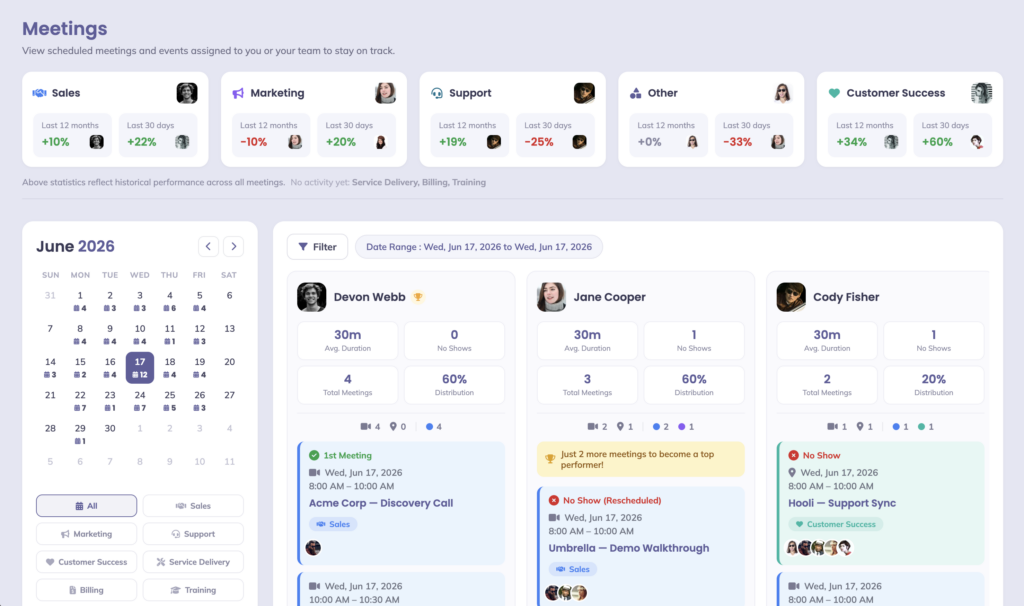
Once your calendar is connected, head to Sales → Meetings. This is your command center: a live picture of what’s happened and what’s ahead.
The stats at the top. Across the top, a card for each meeting type (Marketing, Support, Training, Billing, Other) shows the historical performance of that meeting type: how your activity has trended over the last 12 months and the last 30 days. It’s the quick “where is my time going?” read.
These cards always reflect their own fixed periods. The filters and date selections below them don’t change the figures, so the historical picture stays consistent no matter how you’re slicing the view underneath.
The calendar and filters. A month view shows a count on each day, so busy stretches jump out. Use the filter buttons (All, Marketing, Support, Training, Billing, Other) to focus on just one kind of meeting.
Your team, side by side. Each teammate gets a column with their key numbers and their upcoming meetings:
| Metric | What it tells you |
|---|---|
| Avg. Duration | Typical length of their meetings |
| No Shows | Number of meetings where attendees did not show up |
| Total Meetings | Count in the selected date range |
| Distribution | Their share of the team’s total meetings |
Under the numbers sits a scrollable list of their upcoming meetings, each with a time, title, type tag, and little avatars for the attendees.
Dana’s column reads 45m average, 0 no shows, 6 total meetings, and a 50% distribution, with her whole afternoon of synced sessions listed underneath. She didn’t type a single one of them in.
Step 3: Open a meeting, set its type and outcome #
Click any meeting to open its detail panel. From here you can fine tune the record without leaving LenzVU:
- Meeting Type: change the tag if this one doesn’t match its calendar’s default (say, from Training to Support).
- Meeting Outcome: starts as Pending. Once the meeting happens, set it to the real result so your history stays honest.
- Hide this meeting from others: teammates see the slot as Busy while the details stay private to you.
- Delete Event: removes the record from LenzVU only.
Good to know: Removing a meeting in LenzVU won’t cancel the event or remove it from attendees’ own calendars. It only clears the record on the LenzVU side.
After her call wraps, Dana opens Membership Review (Priya S.), flips the outcome from Pending to the real result, and moves on. Thirty seconds, done.
Step 4: See a client’s full meeting history #
This is where syncing earns its keep. When an attendee on a synced meeting is already a LenzVU contact, or gets created by Auto-create contacts, the meeting attaches to their profile automatically.
Open any contact and go to their Meetings tab. You’ll find:
| Section | What’s inside |
|---|---|
| Insights | Total Meetings · Avg. Duration · Latest Meeting · Completed (past) |
| Upcoming Meeting(s) | Title, Date, Time, Host, Meeting Type, Attendee Status |
| Previous Meeting(s) | The same, plus the recorded Meeting Outcome |
Attendee Status reflects the client’s RSVP. For example, it reads Needs Action until they respond, so you can see at a glance who’s confirmed.
Before a review, Dana opens the client and jumps to the Meetings tab: 552 total meetings, last touchpoint a Marketing session on Jul 30, and every past and upcoming meeting laid out in order. She walks in already knowing the full story, with no retyping and no digging through her calendar. That’s the whole point.
FAQ #
Do I have to import my email to sync my calendar? No. Calendar sync is separate from mail import. You can switch on Enable Calendar connection and leave Gmail or Outlook import turned off.
Google or Microsoft: does it matter which I use? Both are fully supported and follow the same steps. Connect whichever service holds the calendar you want in LenzVU.
Can different calendars have different meeting types? Yes. Set a Meeting type per calendar, and every event from that calendar inherits it. You can still override the type on any individual meeting later.
Why can’t my teammate see my meeting details? Either Privacy Mode is on for that calendar, or the specific event is marked Private in Google or Microsoft. In both cases teammates see only Busy.
What does “Auto-create contacts from attendees” do? When an attendee isn’t already in LenzVU, it creates a contact for them, so the meeting has a client record to attach to and their history starts building.
If I delete a meeting in LenzVU, does it cancel the event? No. It only removes the record from LenzVU. The event stays on your calendar and on your attendees’ calendars.
How do I know it’s syncing? LenzVU keeps your connected calendars in sync automatically, covering events from 180 days back to 14 days ahead. You can check the Last sync time and imported counts under Connection Details on the integration screen.
Glossary #
Meeting type: The tag that classifies a meeting: Marketing, Support, Training, Billing, or Other. Set per calendar and adjustable per meeting.
Meeting outcome: How a meeting turned out. Starts as Pending and is updated once the meeting happens.
Attendee status: An attendee’s RSVP state (for example, Needs Action or Accepted).
Privacy Mode: A per calendar setting that shows your events to teammates as Busy, hiding titles, descriptions, and attendees.
Auto-create contacts: Automatically turns unknown meeting attendees into LenzVU contacts.
Distribution: A teammate’s share of the whole team’s meetings in the selected range.
No show: A meeting where the scheduled attendees did not attend.
Host: The staff member who owns the meeting.


